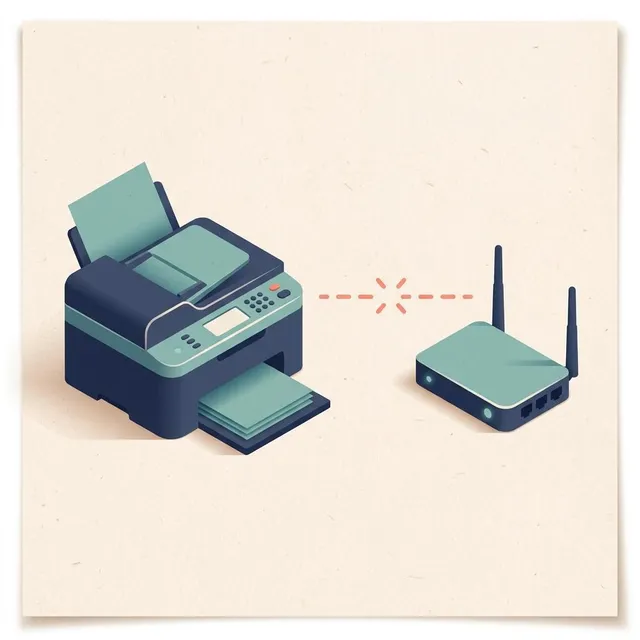
When your computer lists a printer as offline, it means one specific thing: the computer tried to reach the printer and got no answer. The printer itself may be perfectly healthy. Most cases come down to a sleeping printer, a dropped Wi-Fi connection, a changed network address or a stuck job. This guide starts with the quickest checks and moves towards the less likely causes, so try each step in order and send a test print after each one.
Symptoms
You are in the right place if you notice one or more of these.
- Your computer shows the printer's status as Offline, or the printer appears greyed out in the printer list.
- Documents wait in the print queue and never start printing.
- The printer worked recently and nothing obvious has changed.
- Other devices on the same network may still be able to print, or may also fail.
Likely causes
Listed from most to least common.
-
01
The printer is off, asleep or waiting for attention
A deep sleep mode, an open cover, an empty tray or a jam can stop a printer answering the computer.
-
02
The printer lost its Wi-Fi or network connection
A router restart, a new password or a weak signal can leave the printer disconnected without any obvious sign.
-
03
The printer's network address changed
Routers hand out addresses that can change. If the computer still looks for the old one, it sees the printer as offline.
-
04
A stuck job is blocking the queue
One damaged or oversized job can hold up everything behind it and make the printer look unreachable.
-
05
The computer is using an old or duplicate printer entry
Adding a printer more than once creates copies, and the computer may be sending to one that no longer works.
Fix it step by step
7 steps-
Step 1 of 7
Check power, cables and the printer's own display
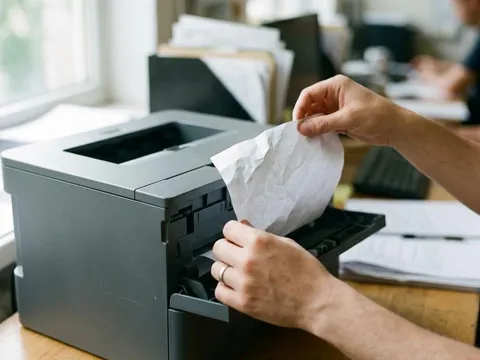
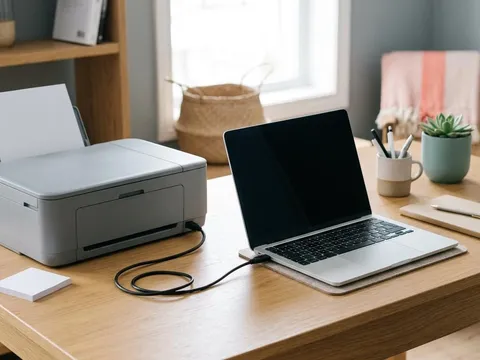
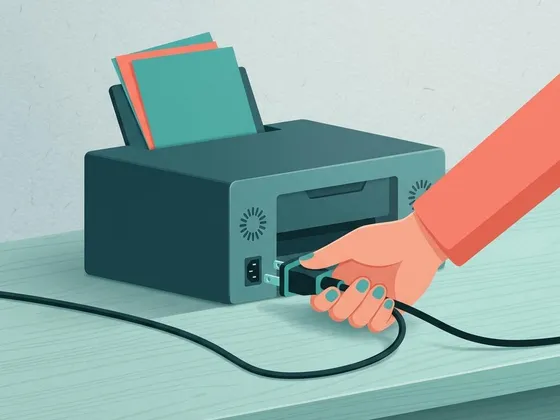
Make sure the printer is switched on and fully awake: press a button or touch the screen. Look for an open cover, an empty paper tray, a jam or an ink or toner message on the display, and clear it. If the printer uses a USB or network cable, check that both ends are firmly seated. Unplugging the power cable for 60 seconds and plugging it straight into a wall socket rather than a power strip clears many temporary faults.
-
Step 2 of 7
Confirm the printer is on your network
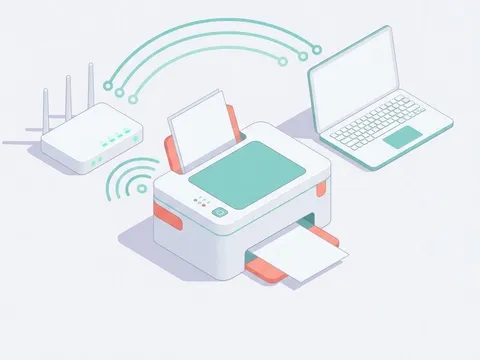
Print a network configuration or wireless test report from the printer's menu. Check the network name it shows against the one your computer is using. If the report says the printer is not connected, run the wireless setup again from the printer. If your computer is on a guest network or a different band name, move it to the same network as the printer.
-
Step 3 of 7
Restart the printer, router and computer, in that order
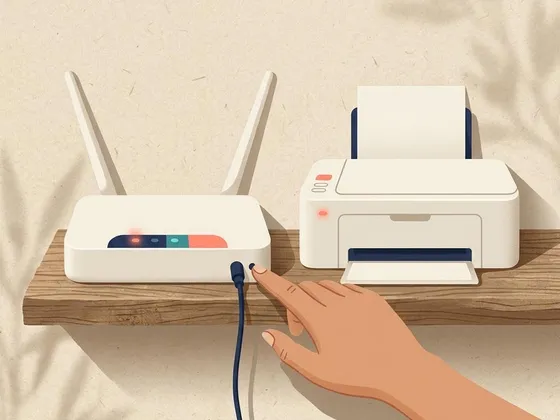
Switch off the printer, then restart the router and wait until its lights settle, which can take two or three minutes. Turn the printer back on and give it a minute to reconnect. Finally, restart your computer. This order lets each device pick up a fresh connection from the router.
-

Step 4 of 7
Clear the print queue
Open the print queue from your computer's printer settings and cancel every waiting document. If a job refuses to cancel, restart the computer and check again. Once the queue is empty, send a single short test page rather than the large document that was waiting.
-
Step 5 of 7
Make sure the printer is not paused or set to work offline
In the print queue window, many systems have a menu with options to pause printing or to use the printer offline. If either is ticked, untick it. This setting can switch on by itself after a failed job, so it is worth checking even if you never touched it.
-
Step 6 of 7
Remove the printer from your computer and add it again
In your computer's printer settings, remove every copy of the printer, including entries with names ending in copy 1 or similar. Then choose to add a printer and select it from the list of devices found on the network. This creates a clean entry pointing at the printer's current address.
-
Step 7 of 7
Give the printer a fixed address
If the printer keeps going offline every few days, its address is probably changing. Note the IP address on the network report, then reserve that address for the printer in your router settings, usually under DHCP reservation or address reservation. Restart the printer afterwards so it picks up the reserved address.
Why printers drop offline after a change
The most common trigger is a change somewhere on the network: a new router, a router firmware update, a new Wi-Fi password or a power cut that restarted everything in a different order. The printer and the computer each reconnect, but not always with the same addresses as before. Keeping a note of what changed recently will often point you to the right step straight away.
Wi-Fi printers and sleep modes
To save power, many printers drop into a deep sleep after a period of inactivity, and some also switch off their wireless radio. Most wake when a job arrives, but a few do not respond quickly enough and the computer marks them offline. Your printer’s settings menu may let you lengthen the sleep timer or keep the wireless connection active during sleep.
Several manufacturers, including Canon (opens in a new tab) and Epson (opens in a new tab), publish model-specific network guidance on their websites. Searching there for your exact model number and the word offline will usually bring up the right article for your printer.
Still not working?
A few more things worth trying before you look further.
- Connect the printer with a USB cable for a moment. If it prints that way, the printer itself works and the problem lies with the network connection.
- Check the manufacturer's website for a firmware update for your exact model, and install it only from there.
- Look up what the lights or messages on your printer mean in its manual. A blinking pattern often points to a specific fault.
- If the printer shows a hardware error or will not power on, contact your printer's manufacturer, especially if it is still under warranty.
Questions readers ask
Why does my printer go offline every few days?
The most likely reason is that its network address keeps changing, or that it falls into a deep sleep the computer cannot wake it from. Reserving the printer's address in your router settings and lengthening its sleep timer solve most repeat cases.
The printer prints from my phone but shows offline on my computer. Why?
That tells you the printer and the network are fine. The computer is probably using an old printer entry or is connected to a different network. Remove the printer from the computer and add it again while both are on the same network.
Does a printer need internet access to print?
No. Printing on a home network only needs the printer and the computer to reach each other through the router. Internet access matters only for cloud printing features, app sign-ins and firmware updates.
Will resetting the printer's network settings help?
It can, as a later step. Restoring network defaults clears saved network details, so you will need to run the wireless setup again afterwards. Try the steps above first, and check your manual for the reset option on your model.
Official manufacturer resources
Your printer's manual and the maker's website are the authoritative source for your exact model.
- HP — manuals, drivers and product help (hp.com) (opens in a new tab)
- Canon — manuals, drivers and product help (usa.canon.com) (opens in a new tab)
- Epson — manuals, drivers and product help (epson.com) (opens in a new tab)
- Brother — manuals, drivers and product help (brother.com) (opens in a new tab)
- Xerox — manuals, drivers and product help (xerox.com) (opens in a new tab)
- Lexmark — manuals, drivers and product help (lexmark.com) (opens in a new tab)
- Kyocera — manuals, drivers and product help (kyoceradocumentsolutions.us) (opens in a new tab)
- Ricoh — manuals, drivers and product help (ricoh-usa.com) (opens in a new tab)