A cartridge error usually appears right after fitting a new cartridge, and it is almost never a sign that the printer is broken. Printers identify cartridges through a small chip and a set of electrical contacts. Anything that stops those contacts touching cleanly, such as a strip of tape, dust, a cartridge not clicked fully into place, or a cartridge designed for a different model or region, produces the same error. This guide covers the general checks that apply to most cartridge inkjets.
Symptoms
You are in the right place if you notice one or more of these.
- The printer shows a message such as cartridge not recognized, incompatible or missing.
- A light flashes next to one color after installing a new cartridge.
- The printer accepted the cartridge at first, then reported an error later.
- The printer will not print at all until the cartridge is replaced.
Likely causes
Listed from most to least common.
-
01
The cartridge is not fully seated
If the cartridge is not pressed fully into its slot, its contacts do not meet the printer's contacts.
-
02
Protective tape or film left on
Some cartridges have a film over the contacts or the nozzles that must be removed before installing.
-
03
Dirty or damaged contacts
Dust, dried ink or fingerprints on the copper contacts can stop the printer reading the cartridge chip.
-
04
The wrong cartridge for the model or region
Cartridges are made for specific printer models, and some printers only accept cartridges sold in the same region.
What you'll need
- The cartridge that is not recognized and its packaging
- A dry, lint-free cloth
- Your printer's model name and the cartridge numbers listed in its manual
Fix it step by step
6 steps-
Step 1 of 6
Confirm the cartridge number matches your printer
Compare the number on the cartridge box with the list in your printer's manual or on the maker's website for your exact model. Similar-looking cartridges for other models often do not fit or are not recognized. Some printers also accept only cartridges from the same region as the printer, which matters if the printer or cartridge was bought abroad.
-
Step 2 of 6
Remove all protective tape and film
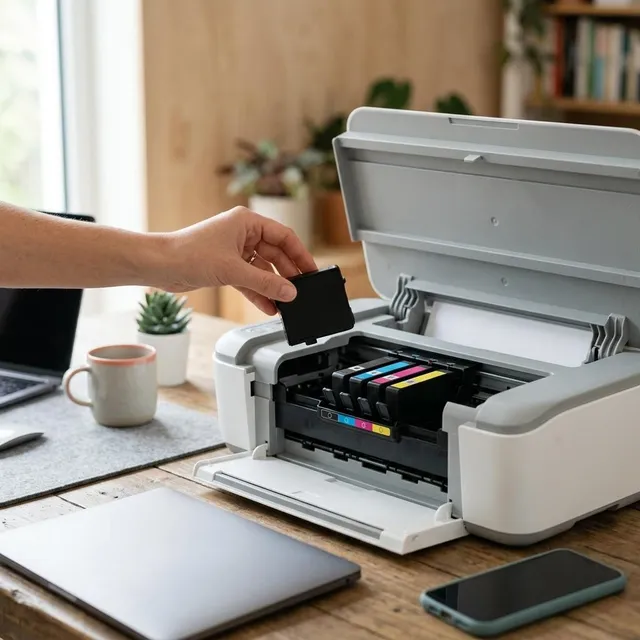
Take the cartridge out and check every side. Remove any colored tape, plastic cap or clear film, especially over the copper contacts and the nozzle area. Hold the cartridge by its sides, without touching the contacts or nozzles.
-
Step 3 of 6
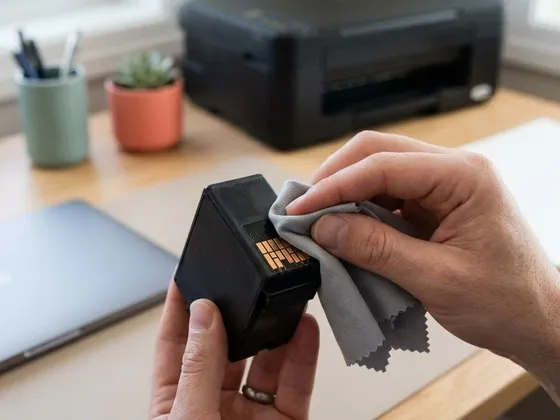
Clean the contacts
Switch the printer off. Gently wipe the copper contacts on the cartridge with a dry, lint-free cloth. If your manual allows it, also wipe the matching contacts inside the carriage, very lightly, with the printer unplugged. Let everything dry if you used any moisture, and never scratch the contacts.
-
Step 4 of 6
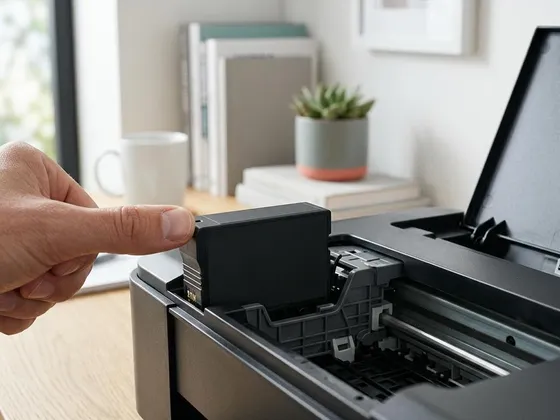
Reseat the cartridge firmly
Switch the printer back on and open the cartridge cover so the carriage moves to the replacement position. Insert the cartridge into the slot of the matching color and press down or in until you feel or hear a click. Close the cover and wait for the printer to finish checking the cartridge.
-
Step 5 of 6
Restart the printer
Switch the printer off, unplug it for one minute, then plug it back in and switch on. A full restart makes the printer read every cartridge again and clears temporary errors.
-
Step 6 of 6
Try a different cartridge
If you have another cartridge of the same type, install it. If the printer accepts it, the original cartridge is likely faulty. Return it to the seller under its warranty, keeping the packaging and receipt.
How printers identify a cartridge
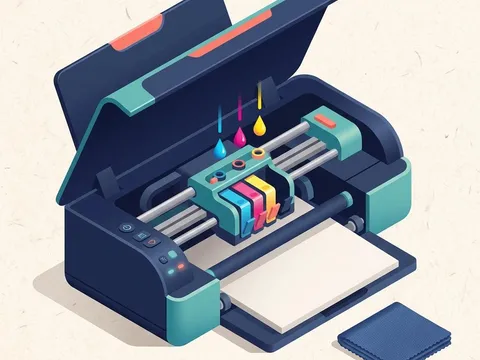
Most modern cartridges carry a small chip that tells the printer the color, the model it is designed for and an estimate of the ink remaining. The printer reads the chip through the copper contacts on the cartridge and in the carriage. A small gap, a speck of dried ink or a strip of film is enough to break that connection, which is why reseating and cleaning solve most cartridge errors.
Checking compatibility before you buy
The manual for your printer lists the cartridge numbers it accepts, often with standard and high-yield versions. The same list appears on the printer maker’s website, for example on the model pages for HP (opens in a new tab) or Canon (opens in a new tab) printers. Buying by model number, rather than by how a cartridge looks, avoids most recognition problems.
When the printer says a cartridge is empty but it is new
Occasionally a printer reports a new cartridge as empty or used. This can happen with refurbished or refilled cartridges whose chip was not reset, or with a cartridge from the wrong region. Reseat it once and restart the printer. If the message remains, return the cartridge to the seller rather than trying to work around the chip.
Still not working?
A few more things worth trying before you look further.
- Check the printer maker's website for a firmware update, then follow the update instructions for your model.
- If the error started after a firmware update and you use non-original cartridges, read the maker's notes on cartridge compatibility for your printer.
- Contact the cartridge seller about a replacement if a new cartridge is rejected and another cartridge works.
- If no cartridge is recognized in one slot, the carriage contacts may be damaged; contact the printer maker for repair options.
Questions readers ask
Can I use refilled or third-party cartridges?
Many people do, and they can save money. Some printers reject them, especially after firmware updates, and print quality varies. Check the cartridge seller's compatibility list for your exact model and keep receipts in case of problems.
Why was the cartridge working yesterday and not today?
A cartridge can shift slightly, contacts can collect dried ink, or the printer may have installed a firmware update. Reseat and clean first, then check for update notes from the printer maker.
Do cartridges really have regions?
Some printer models only accept cartridges sold in the same region as the printer. The region is usually set on first startup. If you moved country with your printer, the manual or maker's website explains the options.
Is it safe to clean the contacts with alcohol?
A dry, lint-free cloth is usually enough. Some manuals allow a cloth very lightly dampened with water or isopropyl alcohol. Follow your printer's manual, and let the contacts dry completely before reinstalling.
Official manufacturer resources
Your printer's manual and the maker's website are the authoritative source for your exact model.
- HP — manuals, drivers and product help (hp.com) (opens in a new tab)
- Canon — manuals, drivers and product help (usa.canon.com) (opens in a new tab)
- Epson — manuals, drivers and product help (epson.com) (opens in a new tab)
- Brother — manuals, drivers and product help (brother.com) (opens in a new tab)