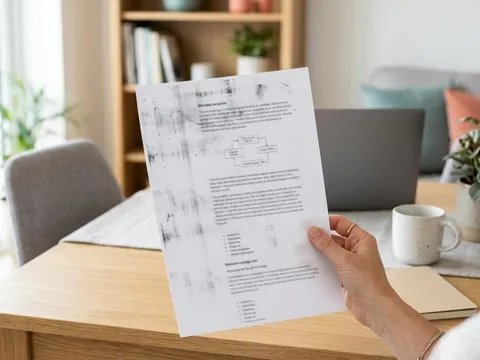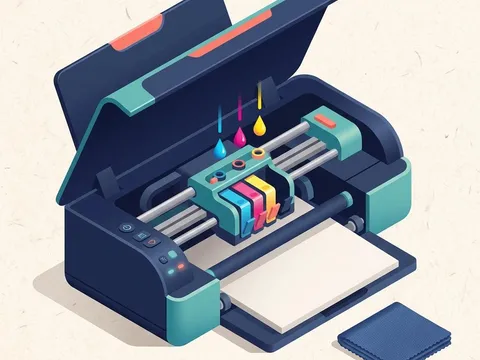
When prints look washed out or one color seems to have vanished, the printer is usually telling you one of four things: an ink is running low, the print quality is set to save ink, the paper setting does not match the paper, or some nozzles have dried. Each has a quick check. Missing colors are particularly easy to diagnose, because the remaining colors shift in a predictable way: blues turn green when magenta is missing, reds turn pink or orange when yellow or magenta fails. This guide works through the checks in order.
Symptoms
You are in the right place if you notice one or more of these.
- Prints look pale or washed out compared with what is on screen.
- One color is missing, so blues look green or skin tones look greenish or blue.
- Black text looks gray rather than solid.
- Colors were fine until recently and faded over a few weeks.
Likely causes
Listed from most to least common.
-
01
Low or empty ink
A cartridge or tank running low delivers less ink before it stops completely. One empty color changes every mixed shade.
-
02
A draft or economy quality setting
Draft, fast or ink-saving modes lay down less ink by design, which makes prints lighter.
-
03
The wrong paper type selected
Telling the printer you are using plain paper when you load photo paper, or the reverse, changes how much ink it uses.
-
04
Partly dried nozzles
If some nozzles for one color are blocked, that color prints weakly or not at all.
What you'll need
- Access to the printer's ink level display or software
- Plain paper and the paper you normally print on
- Replacement ink or cartridges, if a level turns out to be low
Fix it step by step
6 steps-
Step 1 of 6
Check every ink level
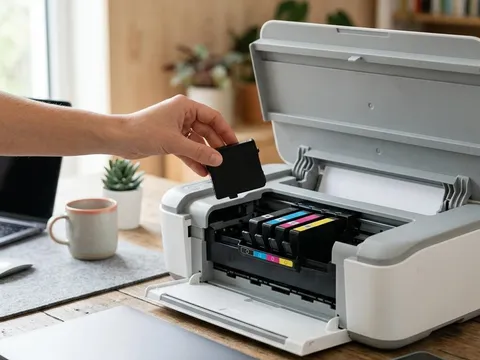
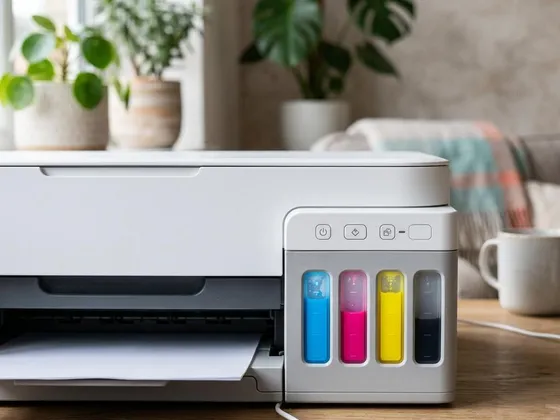
Look at the ink levels on the printer's display, in its software on your computer or phone, or directly at the tanks on an ink-tank printer. Replace or refill any color that is low. Low-ink estimates are approximate, so a cartridge reported as low but not empty may already be printing faintly.
-

Step 2 of 6
Check the print quality setting
Open the printer preferences or the print dialog and look at the quality setting. If it is set to Draft, Fast, Economy or an ink-saving mode, switch it to Standard or Normal and print again. Some printers keep the last-used setting, so a quick draft printed weeks ago can leave every later job pale.
-
Step 3 of 6
Match the paper type to the paper
In the same dialog, set the paper type to match what is loaded. Plain paper absorbs ink differently from glossy or matte photo paper, and the printer adjusts the amount of ink for each. If you print photos on plain paper, expect duller colors than on photo paper, even with the setting correct.
-
Step 4 of 6
Print a nozzle check
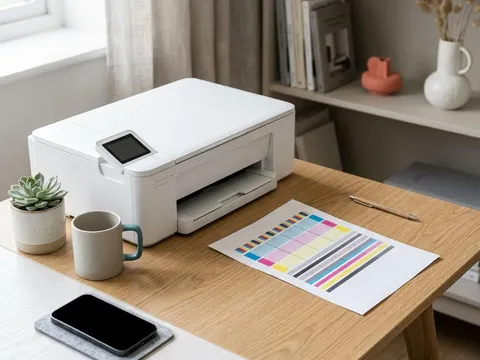
Print a nozzle check from the maintenance menu. Each color should show a complete pattern. Faint or broken lines in one color confirm that its nozzles are partly blocked, even when the ink level is fine.
-
Step 5 of 6
Clean the printhead for the affected color
Run a cleaning cycle, selecting only the affected color if your printer offers that option. Print another nozzle check. If the pattern improves but is not complete, run one more cycle, then let the printer rest for a few hours before checking again.
-
Step 6 of 6
Turn off grayscale and color-saving options
Check that the print dialog is not set to Grayscale, Black and white or a color-saving option you did not intend. Some apps also have their own color settings that override the printer's. Print a test page with known colors, such as a photo you have printed well before, to compare.
How missing colors give themselves away
Color printers mix every shade from three colors, cyan, magenta and yellow, plus black. When one fails, the others still print, so the result shifts in a recognizable way. Missing cyan makes blues purple and greens yellowish. Missing magenta makes blues greenish and reds orange. Missing yellow makes greens blue and skin tones pinkish or gray. Matching the color shift to the missing ink lets you go straight to the right cartridge or nozzle check.
Ink-tank printers and air in the lines
On ink-tank printers, letting a tank run completely dry can let air into the ink tube. The printer may then print faintly in that color even after refilling. Most models have a dedicated ink charge or power cleaning function for this case, described in the manual for your model on the maker’s website, such as the pages for Epson (opens in a new tab) or Canon (opens in a new tab) ink-tank printers. Refill tanks before they reach the lower line to avoid it.
Faded prints from the screen to the page
If prints look accurate but darker or duller than your screen, the screen may be set very bright. Lowering screen brightness and comparing again often shows that the printer is closer to correct than it seemed. Color differences between screens and paper are normal, and printing on photo paper with the matching paper setting narrows the gap.
Still not working?
A few more things worth trying before you look further.
- Replace the cartridge for the faded color even if it reports some ink remaining, particularly if it is old.
- On ink-tank printers, check that the tank valve or transport lock is set to the print position, as described in the manual.
- Let the printer rest overnight, then run one cleaning cycle and a nozzle check.
- If one color will not print with new ink and repeated rest-and-clean cycles, contact the printer maker about the printhead.
Questions readers ask
Why do my blues print green?
Blue is mixed from cyan and magenta. If magenta is missing, only cyan reaches the page, and cyan combined with any yellow looks green. A nozzle check usually shows the missing magenta.
Do old cartridges print lighter?
They can. Ink in a cartridge that has been open for a long time can thicken or partly dry. Cartridges also have a recommended use-by date printed on the pack.
Why does black text look gray?
Check the quality setting first, since draft modes print lighter black. If the quality is normal, a nozzle check often shows the black nozzles are partly blocked, and a cleaning cycle restores solid text.
Will prints fade over time after printing?
Some prints fade in strong light, especially dye-based inks on plain paper. Pigment inks and proper photo paper last much longer. Keep important prints out of direct sunlight and behind glass if framed.
Official manufacturer resources
Your printer's manual and the maker's website are the authoritative source for your exact model.
- HP — manuals, drivers and product help (hp.com) (opens in a new tab)
- Canon — manuals, drivers and product help (usa.canon.com) (opens in a new tab)
- Epson — manuals, drivers and product help (epson.com) (opens in a new tab)
- Brother — manuals, drivers and product help (brother.com) (opens in a new tab)