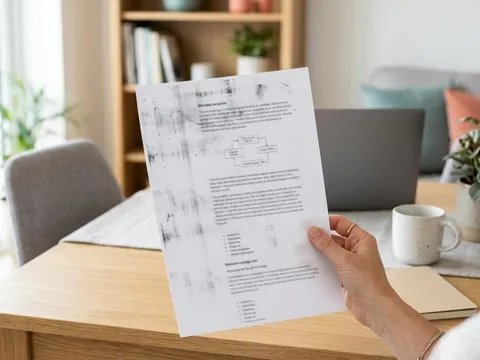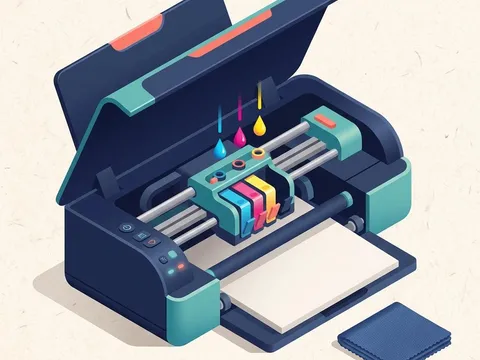
Streaks and lines look alike but have different causes, and the pattern on the page is the best clue to which one you have. Thin horizontal white lines through an inkjet print almost always mean some nozzles are not firing. Fuzzy or doubled vertical lines suggest the printhead needs aligning. Smears and dark bands can come from the wrong paper setting, and repeating vertical streaks on a laser print point to the toner or drum. This guide shows how to read the pattern and fix each cause.
Symptoms
You are in the right place if you notice one or more of these.
- Thin white or pale horizontal lines run across text and images.
- Vertical lines look fuzzy, doubled or slightly jagged.
- Dark streaks, smears or bands appear on the page.
- On a laser printer, a line or mark repeats down the page in the same place.
Likely causes
Listed from most to least common.
-
01
Partly blocked nozzles
When some nozzles in an inkjet printhead stop firing, the printer leaves thin gaps as the head passes, which show as horizontal lines.
-
02
A misaligned printhead
If the printhead is slightly out of alignment, lines printed in one direction do not meet lines printed in the other, which looks fuzzy or doubled.
-
03
The wrong paper type setting
Glossy paper printed on a plain paper setting gets too much or too little ink, which pools, smears or bands.
-
04
A worn drum or low toner on a laser printer
Scratches on the drum, a low or damaged toner cartridge, or toner on the rollers produce vertical streaks and repeated marks.
What you'll need
- Plain paper, plus the paper you were printing on when the lines appeared
- Access to the printer's maintenance menu or software
- A lint-free cloth
Fix it step by step
7 steps-
Step 1 of 7
Look closely at the pattern
Hold the page to the light and note the direction of the lines. Horizontal lines across the direction the paper travelled usually mean blocked nozzles on an inkjet. Fuzzy vertical edges mean alignment. Wide smears mean paper or settings. Vertical lines down a laser print, or marks that repeat at regular spacing, point to the toner, drum or rollers.
-
Step 2 of 7
Run a nozzle check
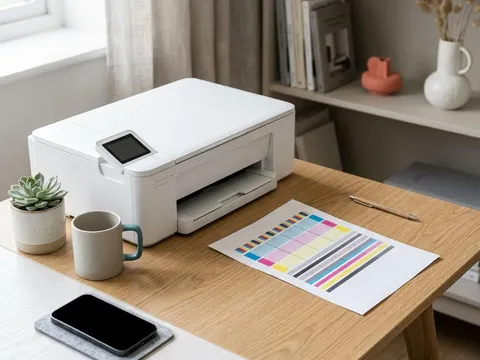
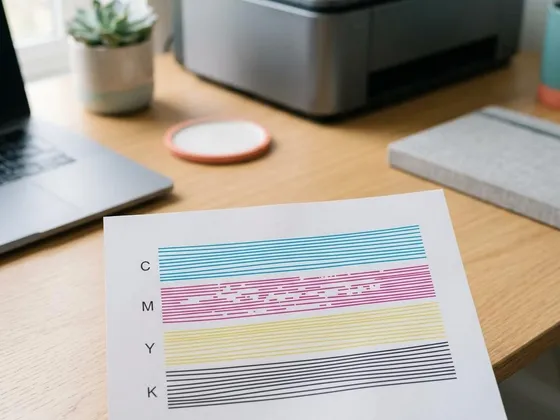
Print a nozzle check from the printer's maintenance menu. Look for gaps or missing segments in each color block. If every block is complete, the nozzles are fine and you can skip to alignment. If there are gaps, note which colors are affected.
-
Step 3 of 7
Run one cleaning cycle and check again
Start a printhead cleaning cycle, choosing only the affected colors if your printer allows it. When it finishes, print another nozzle check. If the gaps are smaller, run one more cycle. If there is no improvement after two cycles, let the printer rest for several hours before trying again, rather than repeating cycles straight away.
-
Step 4 of 7
Align the printhead
Once the nozzle check is complete, run the printhead alignment from the maintenance menu. The printer prints a page of patterns and either reads it automatically or asks you to choose the best-looking pattern in each row. On all-in-ones, some models ask you to place the page on the scanner glass. Alignment sharpens edges and removes doubled lines.
-
Step 5 of 7
Check the paper type and quality settings
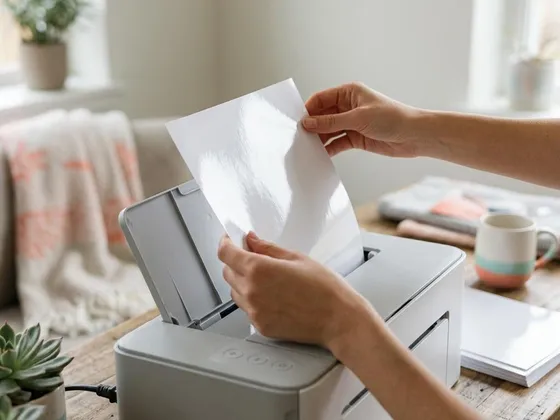
In the print dialog, make sure the paper type matches what is in the tray: plain, matte photo, glossy photo or cardstock. Load glossy paper with the printable side facing the right way, as shown on the paper pack. Choose Standard or High quality rather than Draft for anything other than quick drafts.
-
Step 6 of 7
For laser printers: check the toner and drum
Remove the toner cartridge and gently rock it side to side to spread the toner evenly, then reinstall it. If the printer has a separate drum unit, check its surface for scratches or marks without touching it. A mark that repeats at regular intervals usually matches the circumference of the drum or a roller; the manual for your model lists those distances.
-
Step 7 of 7
Print a test page to confirm
Print the same page that showed the lines, on the same paper. If the lines are gone, you are done. If they remain but the nozzle check and alignment are good, the cause is more likely the paper itself or the original file, which you can test by printing a different document.
Reading the direction of the lines
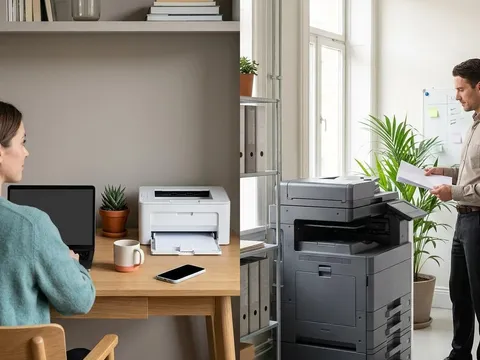
On most inkjets, the printhead moves side to side across the page while the paper moves forward. Missing nozzles leave gaps along the direction the head moves, so they appear as horizontal lines. Alignment errors show on vertical edges, where passes from left to right and right to left must meet exactly. Laser printers work differently: the drum rotates as the paper passes, so a fault on the drum draws a vertical line or repeats a mark down the page.
Maker-specific menus
The nozzle check, cleaning and alignment tools are in different places depending on the printer. On many Epson (opens in a new tab) models they are under Maintenance on the printer’s display, while many Canon (opens in a new tab) models list them under Maintenance in the printer settings on a computer. The manual for your exact model shows the menu path and explains which cleaning options are available.
When the paper is the problem
Paper that is damp, dusty or coated on one side only can cause streaks that look like a printer fault. Try a fresh sheet from a sealed pack. Photo paper has a clear front and back; the printable side is usually brighter and slightly smoother. If a different pack of paper fixes the problem, the printer was never at fault.
Still not working?
A few more things worth trying before you look further.
- Let an inkjet rest overnight, then run one more cleaning cycle and nozzle check.
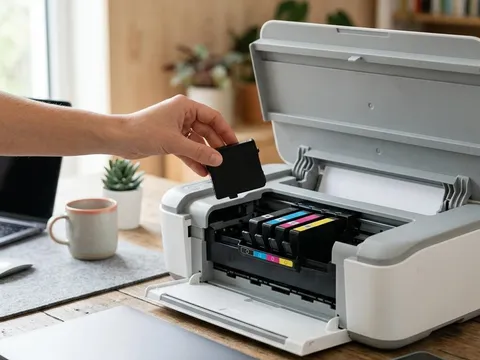
- Replace the cartridge for the affected color, especially if it is old or was refilled.
- On laser printers, replace the toner cartridge or drum unit if streaks follow the same position every time.
- If lines persist with a clean nozzle check, new supplies and correct settings, contact the printer maker about the printhead or drum.
Questions readers ask
Why do horizontal lines appear on my inkjet prints?
Thin horizontal lines are usually gaps left by nozzles that are not firing. A nozzle check confirms it, and one or two cleaning cycles normally clear partial blockages.
Does aligning the printhead use a lot of ink?
No. Alignment prints a single page of small patterns and uses very little ink compared with a cleaning cycle.
Can the wrong paper cause streaks?
Yes. Printing glossy photo paper on a plain paper setting, or loading it the wrong way up, causes ink to pool and smear. Matching the paper setting to the paper usually fixes it.
Why does a mark repeat down my laser prints?
A mark that repeats at a fixed distance usually comes from a spot on the drum or one of the rollers. Measuring the distance between marks and comparing it with the figures in your manual identifies which part is responsible.
Official manufacturer resources
Your printer's manual and the maker's website are the authoritative source for your exact model.
- HP — manuals, drivers and product help (hp.com) (opens in a new tab)
- Canon — manuals, drivers and product help (usa.canon.com) (opens in a new tab)
- Epson — manuals, drivers and product help (epson.com) (opens in a new tab)
- Brother — manuals, drivers and product help (brother.com) (opens in a new tab)
- Lexmark — manuals, drivers and product help (lexmark.com) (opens in a new tab)