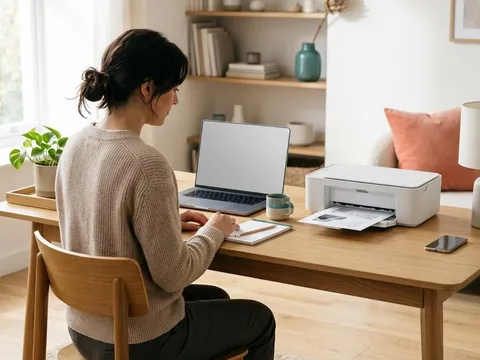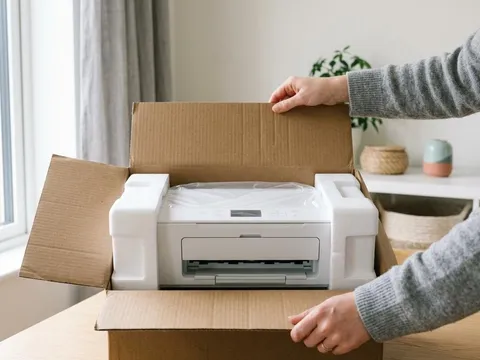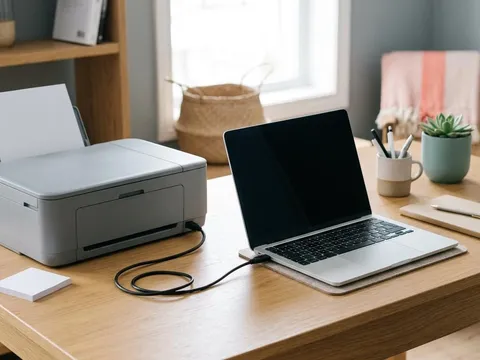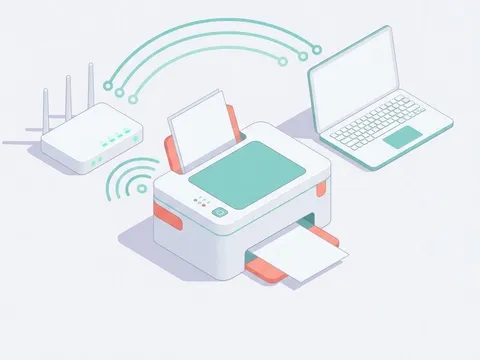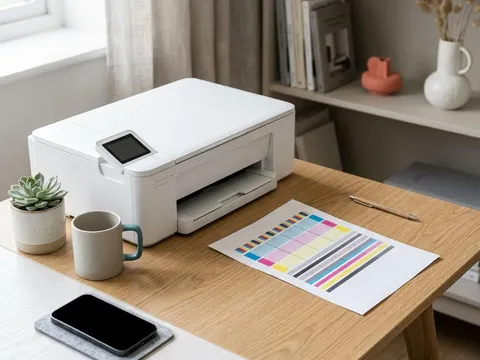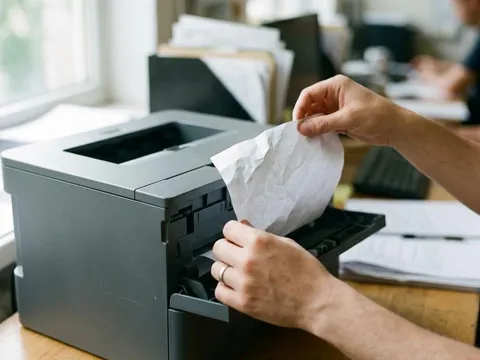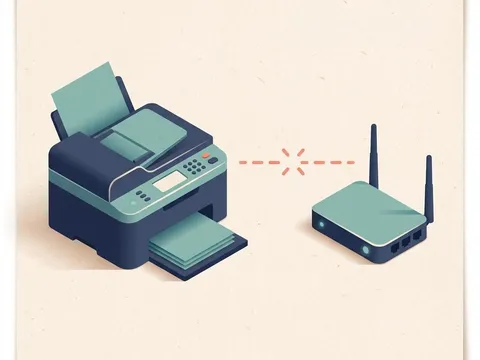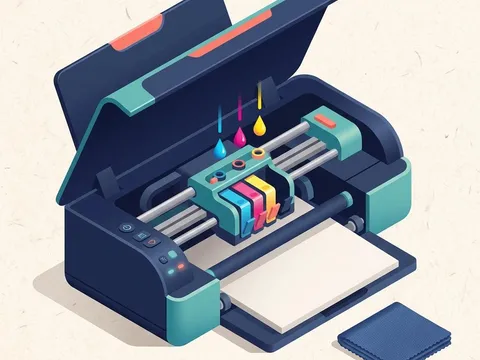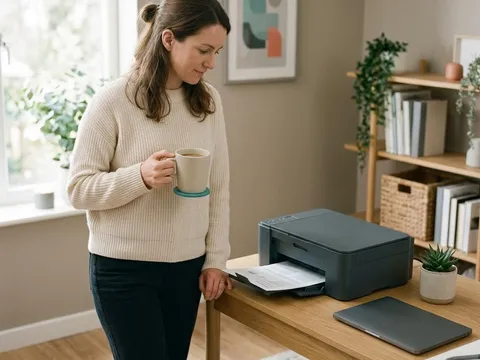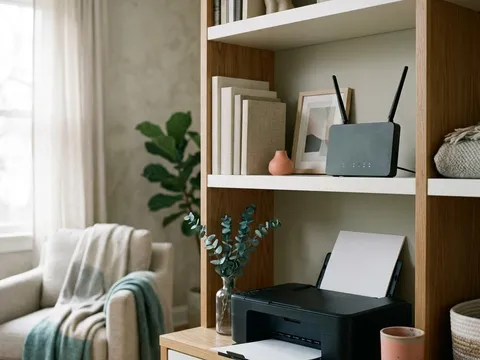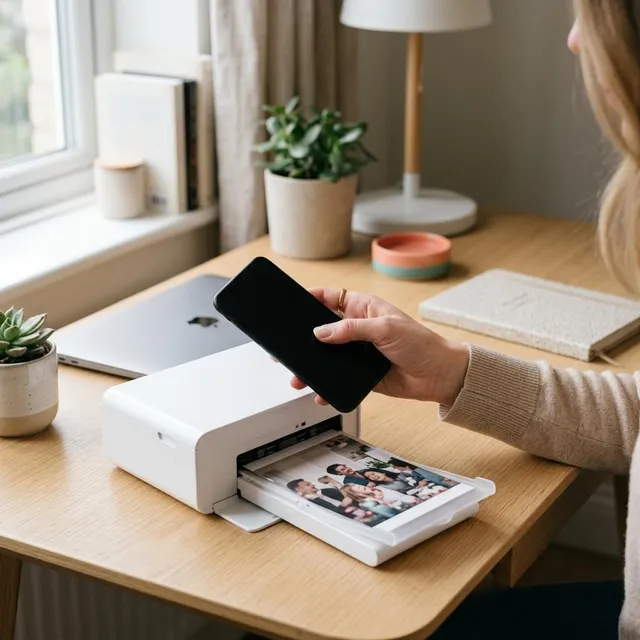
Most printers made in the last several years can print straight from a phone or tablet without any cables and often without installing an app. The phone finds the printer over your Wi-Fi network using a built-in print service, then sends the page from the Share or Print menu of whatever app you are using. When it works, it takes seconds. When it does not, the cause is almost always the network rather than the phone or the printer. This guide covers both the normal route and the checks to make when the printer will not show up.
What you'll need
- A printer connected to your Wi-Fi network, or a portable printer with its own direct wireless connection
- Your phone or tablet connected to the same Wi-Fi network as the printer
- Paper loaded in the printer, and photo paper if you are printing photos
- The printer's manual or the maker's website, to confirm it works with your device's print service
Step by step
6 steps-
Step 1 of 6
Confirm the printer is on your network
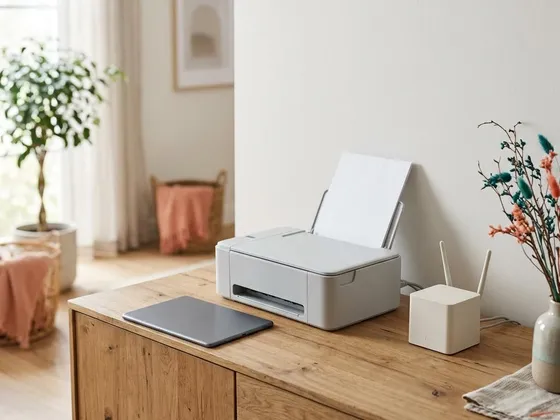
Mobile printing relies on the printer being on the same Wi-Fi network as your phone. From the printer's setup menu, print a network status or Wi-Fi report page. It shows the network name the printer is using and whether the connection is active. If the printer is not on Wi-Fi yet, connect it first using the printer's setup menu or the WPS button on your router.
-
Step 2 of 6
Put your phone or tablet on the same network
Open the Wi-Fi settings on your device and check the network name matches the one on the printer's status page exactly. Homes with a guest network or separate names for the 2.4 GHz and 5 GHz bands often end up with the phone on one and the printer on another, which stops them seeing each other. Switch the phone to the same network as the printer.
-
Step 3 of 6
Open what you want to print and find the Print option
Open the photo, document, web page or email you want to print. Look for the Share button, a three-dot menu or a menu labeled More, and choose Print. Not every app offers printing, but photo galleries, browsers, email apps and document viewers almost always do. If you cannot find Print in one app, save the item as a PDF or image and print it from a file or photo app instead.
-
Step 4 of 6
Select the printer and choose your settings
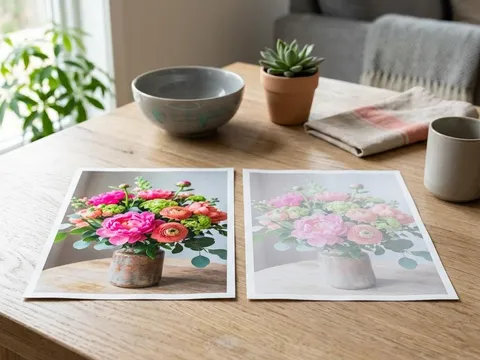
Tap the printer selection at the top of the print screen. Your device searches the network and lists printers it can use. Choose yours, then set the number of copies, the page range, color or black and white, and the paper size. For photos, pick the photo paper size you loaded so the image is not cropped or shrunk.
-
Step 5 of 6
Send the job and collect the page
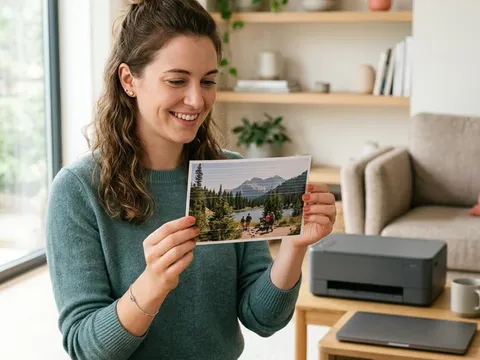
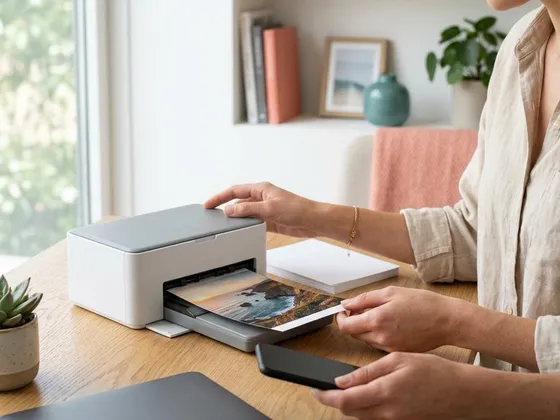
Tap Print. The first page from a new device can take a little longer while the printer and phone agree on settings. If you sent a photo, let it dry for a minute before handling it, especially on glossy paper. To cancel a job that is taking too long, open the print queue from your device's notifications and stop it there.
-
Step 6 of 6
Install the printer maker's app only if you need more
The built-in print service covers everyday printing. The printer maker's own app can add scanning to your phone, ink level checks, setup help for connecting a new printer to Wi-Fi, and printing when you are away from home. Download it only from your device's app store, and check the developer name matches the printer maker.
The print services built into phones and tablets
Phones and tablets use a standard print service rather than individual drivers, which is why most printers just appear without any setup.
On an iPhone or iPad (opens in a new tab), the built-in service is called AirPrint (opens in a new tab). You print from the Share button or the Actions menu in an app, then choose Print. Many printer models work with it out of the box; the maker’s own list of compatible printers (opens in a new tab) lets you check yours before you buy.
On Android (opens in a new tab) phones and tablets, a default print service is built in, and many printers also work through the Mopria (opens in a new tab) print service, which some devices include and others offer as a free app in the app store. Printing is usually under the three-dot menu, then Print or Share and Print.
Portable printers and direct connections
Small portable and photo printers often connect directly to a phone rather than through the home router. They either create their own small Wi-Fi network or pair over Bluetooth. Pairing usually happens inside the maker’s app rather than from the phone’s main Bluetooth settings, so follow the steps in the quick-start sheet that came in the box. Direct connections are handy away from home, but your phone may lose internet access while it is connected to the printer’s own network.
Printing when you are away from home
Some printers can receive jobs over the internet, using an email address assigned to the printer or a cloud service run by the maker. These features need an account and are switched on in the maker’s app or the printer’s web settings page. If you do not need them, leaving them off keeps the printer reachable only from your home network, which is simpler and more private.
Still not working?
A few more things worth trying before you look further.
- Restart the printer, then the router, then your phone, waiting for each to finish starting before the next.
- Check whether your router has a setting such as client isolation or AP isolation switched on, which stops devices on the network seeing each other.
- Try printing from a second phone or a computer to see whether the problem is with one device or with the printer's network connection.
- Check your printer maker's website for a firmware update, which can add or repair mobile printing features.
Questions readers ask
Do I need an app to print from my phone?
Usually not. Most phones and tablets include a print service that finds compatible printers on the same Wi-Fi network. The printer maker's app is optional and mainly adds scanning, ink levels and remote features.
Why doesn't my printer show up on my phone?
The most common reason is that the phone and printer are on different networks, for example a guest network or a separate 5 GHz network name. Check both network names match. Restarting the printer and router also clears many discovery problems.
Can I print from my phone without Wi-Fi?
Many printers offer a direct wireless mode, often called Wi-Fi Direct, which creates a small private network between the printer and your device. Portable printers commonly use this or Bluetooth. Your printer's manual explains how to switch it on.
Will printed photos look as good as from a computer?
They can. Choose the correct paper type and size in the print options, and use photo paper suited to your printer. The quality setting matters more than the device you print from.
Official manufacturer resources
Your printer's manual and the maker's website are the authoritative source for your exact model.
- HP — manuals, drivers and product help (hp.com) (opens in a new tab)
- Canon — manuals, drivers and product help (usa.canon.com) (opens in a new tab)
- Epson — manuals, drivers and product help (epson.com) (opens in a new tab)
- Brother — manuals, drivers and product help (brother.com) (opens in a new tab)