Laser printers fix toner onto paper with heat and pressure. When that process is not working well, toner smears, rubs off under a finger, or leaves a faint second copy of the image further down the page, known as ghosting. The cause is often simpler than a failing part: damp paper, a paper type setting that does not match the paper, or toner that needs redistributing. This guide checks the easy causes first and explains when a worn drum or fuser is the more likely reason.
Symptoms
You are in the right place if you notice one or more of these.
- Toner smears or rubs off when you run a finger across the page.
- A faint copy of text or images appears lower down the page.
- Gray haze or speckles cover the background of the page.
- Marks or smudges repeat at the same spacing down every page.
Likely causes
Listed from most to least common.
-
01
Damp or unsuitable paper
Paper that has absorbed moisture, or very smooth or heavy stock, does not fuse toner properly, so it smears or rubs off.
-
02
A paper type setting that does not match
The printer sets fuser temperature by paper type. Heavy paper on a plain paper setting may not get enough heat to fix toner.
-
03
A worn drum or toner problem
A drum near the end of its life, or a toner cartridge that is low or leaking, causes ghosting, background haze and repeated marks.
-
04
A worn fuser
The fuser heats and presses toner into the paper. As it wears, toner stops bonding fully and smears.
What you'll need
- Fresh, dry paper from a sealed pack
- Access to the printer's settings or driver preferences
- A lint-free cloth and a sheet of paper to rest supplies on
Fix it step by step
6 steps-
Step 1 of 6
Try fresh paper from a sealed pack
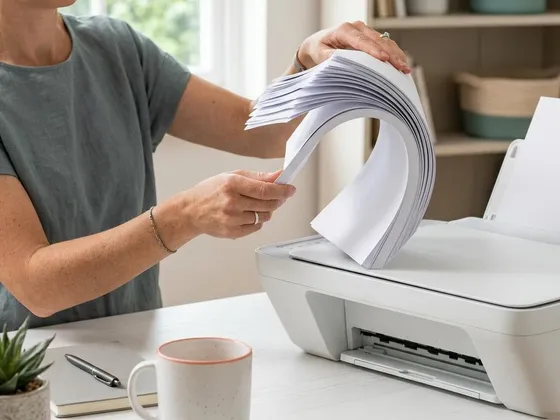
Load a few sheets from a new, sealed pack of plain paper in the weight your printer recommends. Print a page and rub it gently after it cools. If the smearing stops, the old paper had absorbed moisture. Store paper flat, in its wrapper, away from damp rooms.
-
Step 2 of 6
Set the paper type to match
In the driver preferences or on the printer's display, set the paper type for the tray you are using. For card, labels or heavier paper, choose Heavy, Thick or Cardstock so the printer adjusts the fuser temperature and speed. For plain paper, choose Plain. A mismatch here is one of the most common causes of smudging.
-
Step 3 of 6
Redistribute the toner
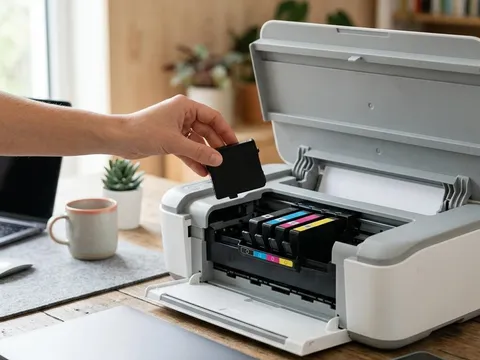
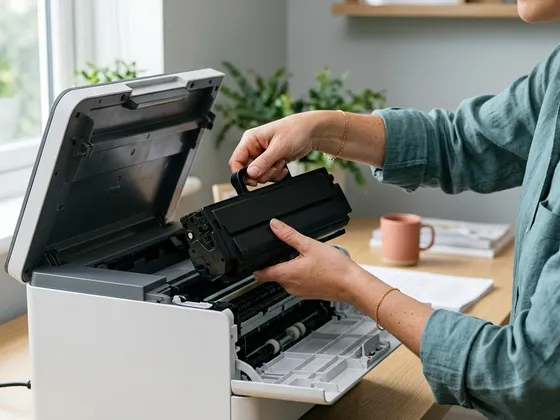
Switch the printer off, open the cover and remove the toner cartridge. Holding it level, rock it gently side to side five or six times to spread the toner evenly, then reinstall it until it locks. Rest the cartridge on a sheet of paper if you put it down, in case loose toner falls out.
-
Step 4 of 6
Inspect the drum without touching it
If your printer has a separate drum unit, remove it according to the manual and look at the drum surface under a light. Scratches, dents or patches that do not wipe away will print on every page. Do not touch the drum surface with your fingers and keep it out of bright light for long periods.
-
Step 5 of 6
Run the printer's cleaning page
Many laser printers have a cleaning page or fuser cleaning routine in the maintenance menu. It runs a sheet through the printer to pick up loose toner from the rollers. Run it once or twice, then print a test page.
-
Step 6 of 6
Measure repeating marks
If a mark repeats down the page, measure the distance between repeats with a ruler. The manual for many laser printers lists the repeat distance for each roller and the drum. Matching your measurement to the list tells you which part is responsible, whether the drum, the fuser or a transfer roller.
Toner, drum and fuser: what each part does
The drum carries an electrical image of the page and picks up toner powder where the text and images should be. The paper passes under the drum and the toner transfers onto it. Then the fuser, a pair of heated rollers, melts and presses the toner into the paper fibers. Smudging and rub-off usually point to the fuser stage or the paper. Ghosting, haze and repeated marks usually point to the drum and toner stage.
Handling toner safely
Toner is a very fine powder. If some spills, wipe it up with a dry cloth or a damp paper towel and cold water; warm water can set it into fabric. Do not use a household vacuum cleaner, because fine toner can pass through the filter. Return used cartridges through the recycling program run by the printer maker or a local electronics recycler. The maker’s pages, for example for Brother (opens in a new tab) or Lexmark (opens in a new tab) printers, describe the recycling options and the correct handling for your supplies.
Separate drum or combined cartridge
Some laser printers combine the toner and drum in one cartridge, so a new cartridge also means a new drum. Others use a separate drum unit that lasts through several toner cartridges. Knowing which design your printer uses saves money: with a separate drum, ghosting may be fixed by replacing the drum alone, while a combined cartridge is replaced as a whole.
Still not working?
A few more things worth trying before you look further.
- Replace the toner cartridge if ghosting or haze continues after redistributing it.
- Replace the drum unit if the printer reports it near the end of its life or the surface is visibly damaged.
- Check the printer's maintenance counters in its menu to see whether the fuser has reached its rated life.
- If toner still rubs off with fresh paper, correct settings and new supplies, the fuser may need replacing; contact the printer maker for options.
Questions readers ask
What is ghosting on a laser printer?
Ghosting is a faint copy of text or images appearing further down the page. It often comes from a worn drum, toner that is low, or a paper type setting that does not match the paper.
Is it safe to clean inside a laser printer?
Light cleaning is safe if you switch off, unplug and let the printer cool first. Wipe only the areas the manual describes, use a dry lint-free cloth, and never use a regular vacuum cleaner on toner.
Can damp paper really cause smudging?
Yes. Moist paper absorbs some of the fuser's heat, so toner does not bond as well. It also tends to curl and jam. Fresh paper from a sealed pack is a quick test.
How long does a drum last?
Drum life is listed in pages in your printer's specifications and varies widely by model. Many printers show the remaining drum life in their status report.
Official manufacturer resources
Your printer's manual and the maker's website are the authoritative source for your exact model.
- HP — manuals, drivers and product help (hp.com) (opens in a new tab)
- Brother — manuals, drivers and product help (brother.com) (opens in a new tab)
- Lexmark — manuals, drivers and product help (lexmark.com) (opens in a new tab)
- Xerox — manuals, drivers and product help (xerox.com) (opens in a new tab)
- Kyocera — manuals, drivers and product help (kyoceradocumentsolutions.us) (opens in a new tab)