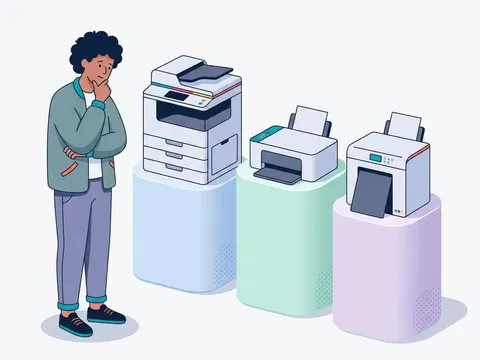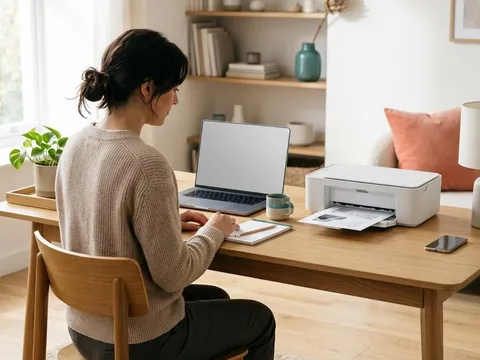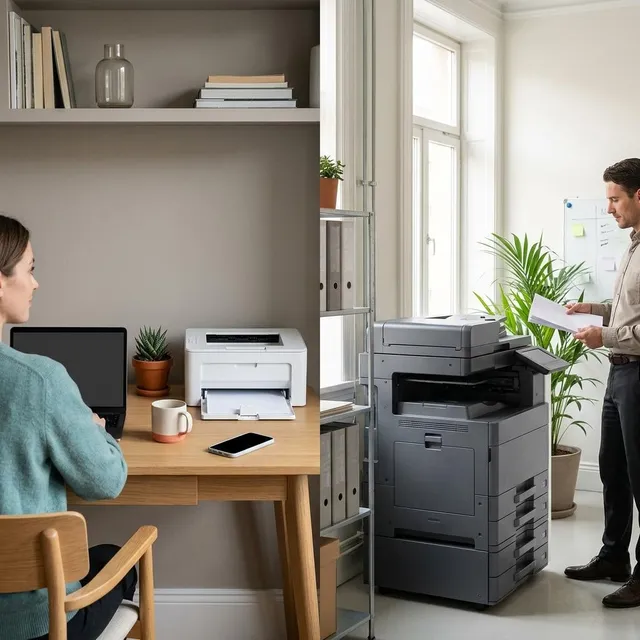
A printer that is perfect at home can be frustrating in a small office, and an office printer can be loud, large and expensive overkill at home. The differences are less about technology and more about volume, paper handling, sharing between people and how much downtime you can accept. This guide explains what each setting needs, then walks through choosing a printer for a home, a home office or a small shared office.
What you'll need
- An estimate of pages printed per month across everyone who will use the printer
- The number of people and devices that will print
- Where the printer will sit and how much space is available
Step by step
7 steps-
Step 1 of 7
Count the people and devices
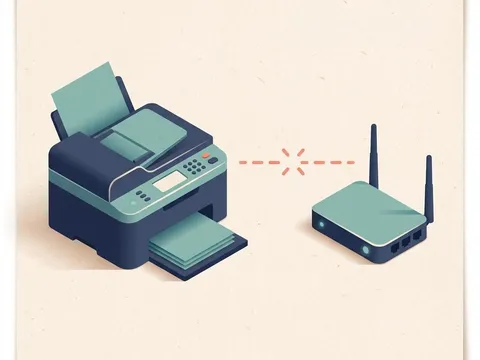
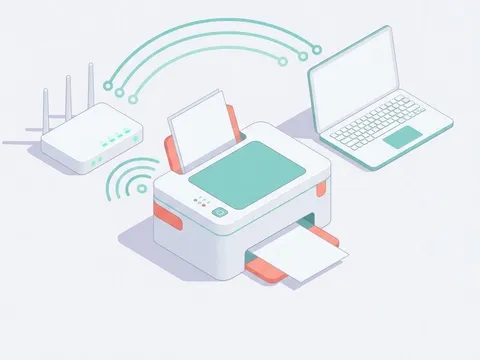
A home printer may serve one or two computers and a few phones. A small office printer may serve ten people or more. More users mean more simultaneous jobs, more paper and more need for a printer that handles a queue without fuss. Network connectivity, either wired or wireless, is essential once more than one person prints.
-
Step 2 of 7
Estimate the monthly volume
Add up rough monthly page counts for everyone. Homes often print under 100 pages per month. Home offices may reach a few hundred, and small offices often print thousands. Compare your total with each printer's recommended monthly page volume, not its maximum duty cycle, which is a stress-test figure.
-
Step 3 of 7
Choose the right technology for the setting
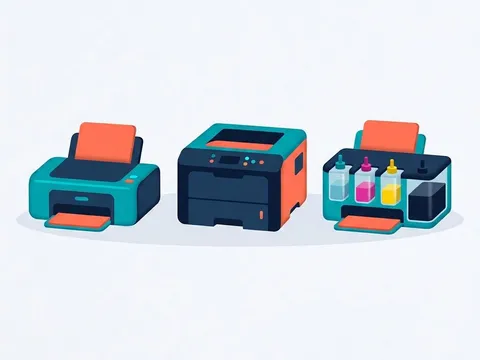
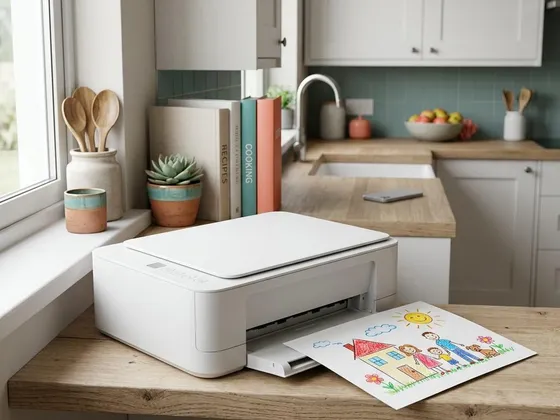
At home, a cartridge or ink-tank inkjet handles mixed documents, school work and photos. In a home office printing mostly documents, a monochrome laser or ink-tank printer keeps costs low. In a small office, a laser printer or business-class inkjet built for higher volume is usually the most reliable choice.
-
Step 4 of 7
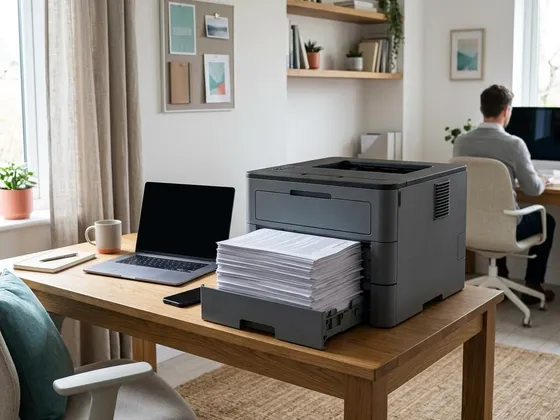
Check paper capacity and handling
Home printers often hold 100 to 150 sheets. Office printers commonly hold 250 sheets or more, with optional extra trays for letterhead or different sizes. A larger tray means fewer interruptions, and a second tray avoids constantly swapping paper types.
-
Step 5 of 7
Consider scanning and copying needs
In an office, an all-in-one with an automatic document feeder that scans both sides in one pass saves real time. At home, a flatbed scanner on an all-in-one is usually enough for occasional documents and photos.
-
Step 6 of 7
Think about sharing and security
Office printers often include features such as secure print, which holds a job until the person enters a PIN at the printer, and user codes that track printing by person or department. These matter when documents are confidential. At home, keeping the printer's firmware up to date and setting an admin password on its web settings page is usually enough.
-
Step 7 of 7
Plan for supplies and downtime
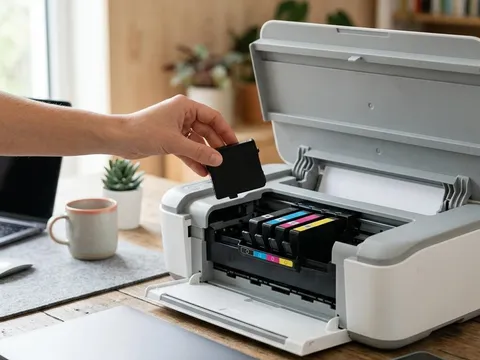
In an office, a printer out of toner stops work for everyone. Keep one spare set of supplies on hand and choose a printer whose supplies are easy to buy locally. At home, a short wait for ink is less disruptive, but keeping one spare black cartridge or bottle is still sensible.
A quick checklist for each setting
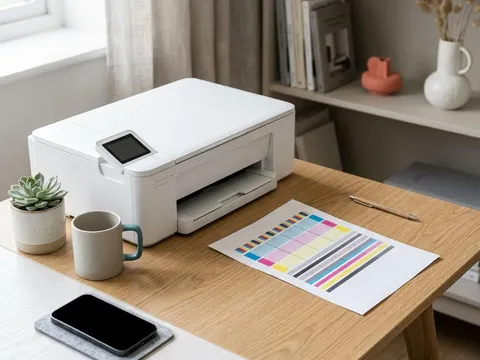
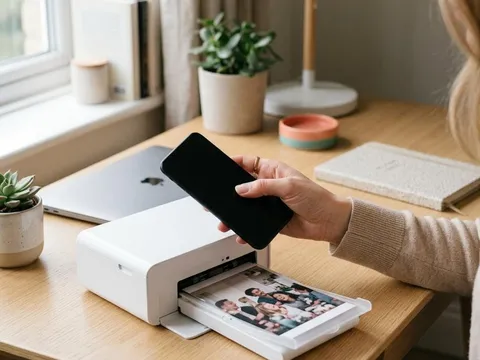
Home: compact size, quiet operation, good photo and color quality, wireless and phone printing, low purchase price or low ink cost depending on volume.
Home office: fast document printing, automatic two-sided printing, an automatic document feeder for scanning, low cost per page, reliable network connection.
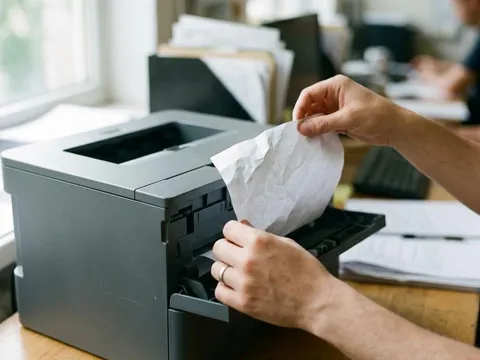
Small office: high monthly volume, large paper capacity with optional trays, wired network connection, secure print and user management, easy-to-find supplies, fast first page out.
Business-class printers explained
Printer makers sell lines designed for offices, with sturdier paper handling, larger supplies and management features. You can compare these on each maker’s business pages, for example Xerox (opens in a new tab), Kyocera (opens in a new tab) and Ricoh (opens in a new tab), which typically list recommended monthly volume, paper capacity and security features. Some business printers are also offered through lease or managed print arrangements; read the terms carefully, including minimum contract length and the cost per page included.
Where the printer lives
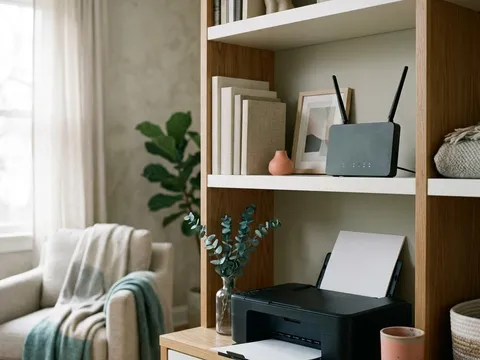
At home, a printer near the router and away from bedrooms keeps the signal strong and the noise down. In an office, a central spot with space for paper storage and room to open every tray and cover makes daily use easier. In both, keep the printer away from direct sunlight, heaters and damp areas, which affect paper and print quality.
Questions readers ask
Can I use a home printer in a small office?
For a few people printing modest volumes, yes. Once printing reaches hundreds of pages a month across several users, a printer built for office volume is usually more reliable and cheaper to run.
What is secure print?
Secure print holds a job on the printer until the person who sent it enters a code on the printer's panel. It stops confidential pages sitting in the output tray for others to see.
Is a color printer necessary for an office?
Many offices print mostly black documents. A monochrome laser can handle everyday printing at low cost, with a separate color printer for occasional marketing or presentation material.
What does duty cycle mean?
Duty cycle is the maximum number of pages a printer can produce in a month without damage. The recommended monthly volume is a better guide to everyday use, and it is usually much lower.
Official manufacturer resources
Your printer's manual and the maker's website are the authoritative source for your exact model.
- HP — manuals, drivers and product help (hp.com) (opens in a new tab)
- Brother — manuals, drivers and product help (brother.com) (opens in a new tab)
- Xerox — manuals, drivers and product help (xerox.com) (opens in a new tab)
- Lexmark — manuals, drivers and product help (lexmark.com) (opens in a new tab)
- Kyocera — manuals, drivers and product help (kyoceradocumentsolutions.us) (opens in a new tab)
- Ricoh — manuals, drivers and product help (ricoh-usa.com) (opens in a new tab)