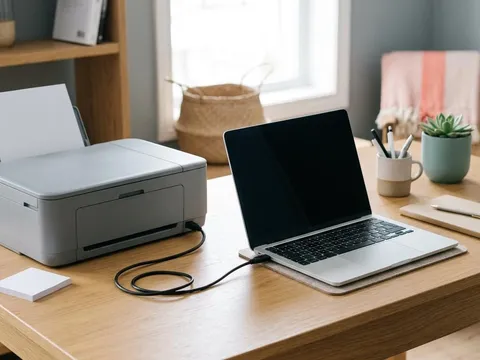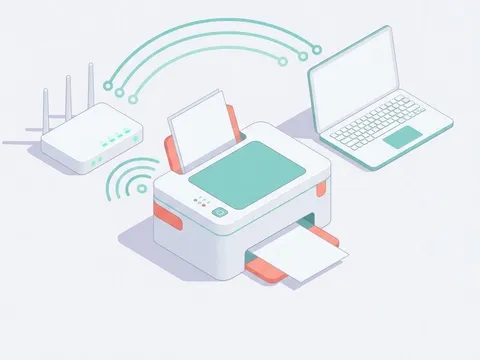
When you press Print and nothing happens, the job usually has not vanished. It is waiting in a queue on your computer, and often one damaged or oversized document at the front is blocking everything behind it. Clearing that queue is one of the most effective printer fixes there is, and it takes a few minutes. This guide shows how to cancel stuck jobs, restart the part of the computer that manages printing, and confirm the printer is ready to receive new jobs.
Symptoms
You are in the right place if you notice one or more of these.
- You press Print, but the printer does nothing and shows no error.
- The print queue shows one or more documents with a status such as Error, Printing or Paused that never changes.
- New jobs line up behind an old document that will not clear.
- Cancelling a job seems to do nothing, or the job reappears.
Likely causes
Listed from most to least common.
-
01
A damaged or very large document at the front
A file the printer cannot process, or a huge image-heavy document, can stall the queue so every later job waits behind it.
-
02
The printer was paused or set to work offline
A queue can be paused by accident, or the computer may have marked the printer offline after a lost connection.
-
03
The computer's print service has stalled
The background service that hands jobs to the printer can freeze, especially after a driver update or a sleep and wake cycle.
-
04
Jobs were sent to the wrong printer
If the computer has several printer entries, jobs may be queuing for an old or duplicate entry rather than the printer in front of you.
What you'll need
- Access to the computer that sent the jobs
- An account on that computer that can change printer settings
- A few minutes with the printer switched on and paper loaded
Fix it step by step
7 steps-
Step 1 of 7
Check the printer itself first
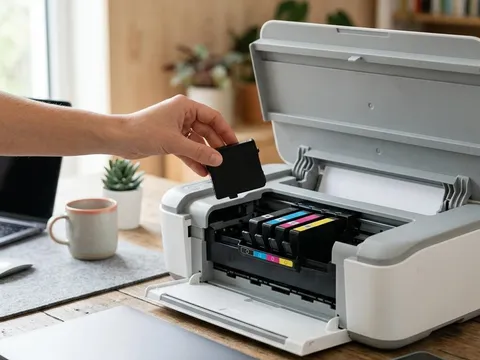
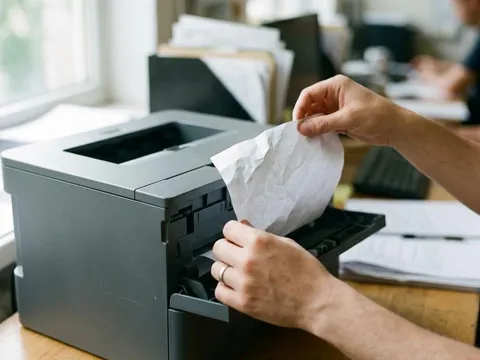
Look at the printer's display or lights. A paper jam, an empty tray, an open cover or an empty cartridge stops printing and makes the queue look stuck. Clear any error shown on the printer, make sure paper is loaded, and check the printer is switched on and connected.
-
Step 2 of 7
Open the print queue on your computer
Open your computer's printer settings, select the printer and open its queue, sometimes called Open print queue or See what's printing. You will see every waiting job with its status. Note which printer entry the jobs are under, and check that it is the printer you are standing next to.
-
Step 3 of 7
Resume the printer if it is paused
In the queue window, check the printer's menu for options such as Pause printing or Use printer offline. If either is ticked, untick it. Many stuck queues are simply paused, and jobs start moving within seconds once you resume.
-

Step 4 of 7
Cancel the stuck job, then all jobs if needed
Select the job at the top of the queue and cancel it. Wait a moment to see whether the jobs behind it start printing. If they do not, cancel all documents from the printer menu. Jobs showing a Deleting status for more than a minute mean the print service itself is stuck, which the next step fixes.
-
Step 5 of 7
Restart the printer and the computer
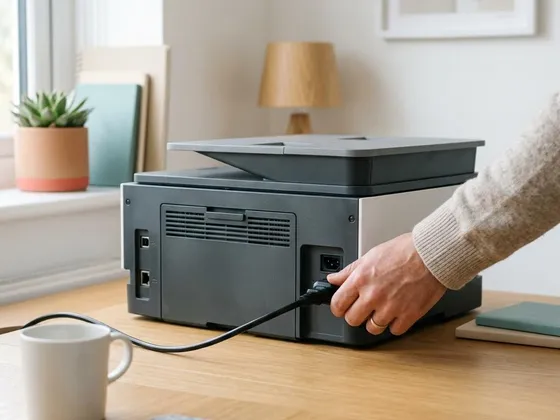
Switch the printer off and unplug it for 30 seconds. Restart the computer completely rather than putting it to sleep. A restart clears the print service and any jobs it was holding. Plug the printer in, switch it on, and wait until it is fully ready before sending a new job.
-
Step 6 of 7
Restart the print service if restarting is not enough
If jobs still will not clear, stop and start the computer's print service manually. The system-specific steps are below. After restarting it, the queue should be empty. Send a one-page test document to confirm printing works.
-
Step 7 of 7
Remove duplicate printer entries
If you found jobs queued under the wrong printer, or several entries for the same model, remove the ones you do not use. Keep the entry that matches how the printer is connected, set it as default, and print a test page.
Restarting the print service on common systems
On Windows 11 (opens in a new tab), the background service is called Print Spooler. Open the Services app, find Print Spooler, and choose Restart. If jobs still remain, stop the service, delete the files in the spool folder described in the system maker’s linked instructions, and start the service again. The same page also explains how to cancel all jobs from Settings.
On a Mac (opens in a new tab), open System Settings, then Printers & Scanners, and select the printer. Open the print queue to delete jobs. If the queue keeps misbehaving, right-click in the printer list and choose to reset the printing system, then add the printer again. Resetting removes every printer from the list, so you will need to add each one back.
On a Chromebook (opens in a new tab), open the print jobs list from the launcher or the printing settings, cancel the jobs, then restart the laptop.
When a printer entry keeps going offline
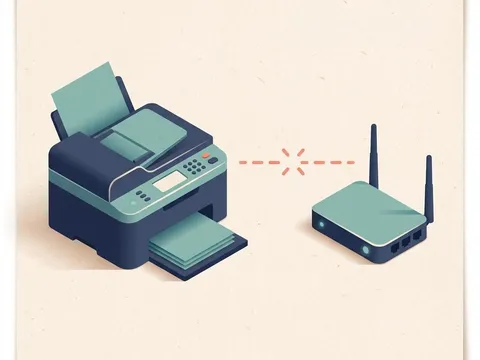
If the queue clears but the printer shows as offline again soon after, the real issue is the connection rather than the queue. For network printers, a changing IP address is a common cause: the computer keeps looking for the printer at its old address. Our guide to a printer showing offline walks through the network checks in order, and reserving a fixed address for the printer in your router settings usually stops the problem coming back.
Still not working?
A few more things worth trying before you look further.
- Remove the printer completely from the computer, restart, and add it again so a fresh queue is created.
- Install the latest driver for your exact model from the printer maker's website.
- Try printing from a different computer or phone. If those work, the problem is limited to the first computer's settings.
- If no device can print and the printer shows an error you cannot clear, check the maker's troubleshooting pages for your model or contact the maker.
Questions readers ask
Will cancelling the queue delete my documents?
No. Cancelling only removes the copy waiting to print. Your original file stays where it was saved, and you can print it again once the queue is clear.
Why does one document block everything behind it?
Most print queues send jobs in order. If the first job cannot be processed or is stuck mid-transfer, the others wait until it finishes or is removed.
How do I stop this happening again?
Keep the printer driver up to date, avoid sending very large files all at once, and remove printer entries you no longer use. Restarting the computer every so often also clears stalled print services.
Can a stuck queue be caused by the printer rather than the computer?
Yes. A paper jam, empty tray, open cover or lost network connection on the printer stops jobs moving, and they pile up on the computer. Always check the printer's display first.
Official manufacturer resources
Your printer's manual and the maker's website are the authoritative source for your exact model.
- HP — manuals, drivers and product help (hp.com) (opens in a new tab)
- Canon — manuals, drivers and product help (usa.canon.com) (opens in a new tab)
- Epson — manuals, drivers and product help (epson.com) (opens in a new tab)
- Brother — manuals, drivers and product help (brother.com) (opens in a new tab)