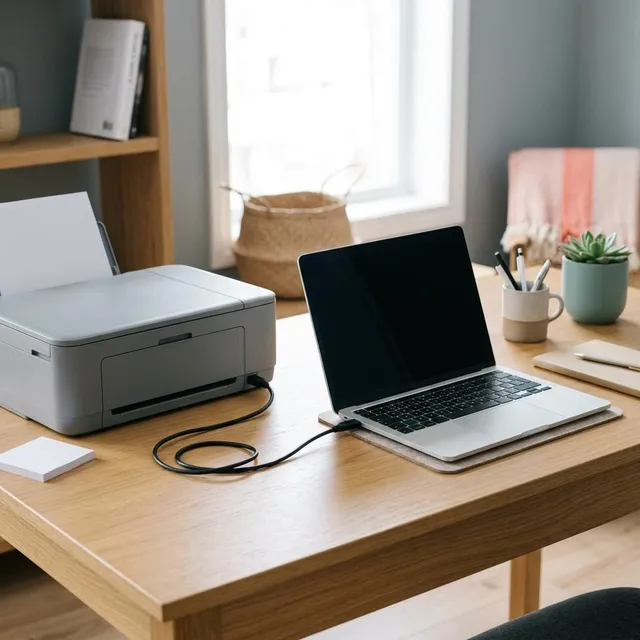
A USB cable is the most direct way to connect a printer to one computer. There is no network to configure, no password to type and nothing to drop out when the Wi-Fi is busy. It suits a printer that sits next to a single desktop or a laptop that is always used at the same desk, and it is also the most reliable way to set up a printer for the first time before moving it onto a network. This guide covers choosing the cable, connecting in the right order and checking the result.
What you'll need
- A USB printer cable that fits both your printer and your computer
- A free USB port directly on the computer
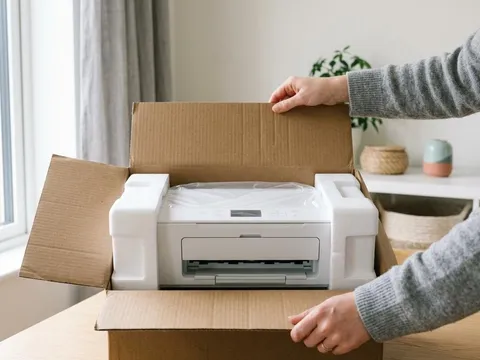
- The printer unpacked, switched on and loaded with paper
- Your printer's model name, in case you need a driver from the manufacturer's website
Step by step
6 steps-
Step 1 of 6
Check which cable you need
Most printers have a square-ish USB-B port on the back. Older computers have the flat rectangular USB-A port, and newer laptops often only have the smaller oval USB-C port. Buy a cable with the right end for each side, for example USB-C to USB-B for a recent laptop, rather than stacking adapters. Many printers no longer include a cable in the box, so check before setup day. A length of 2 meters (about 6 feet) or less works best.
-
Step 2 of 6
Switch the printer on and finish its first-time setup
Before plugging into the computer, let the printer finish anything it asks for on its own display, such as choosing a language, installing ink or toner and running an alignment page. A printer that is still busy with first-time setup may not respond properly when the computer tries to identify it.
-
Step 3 of 6
Plug the cable into the printer
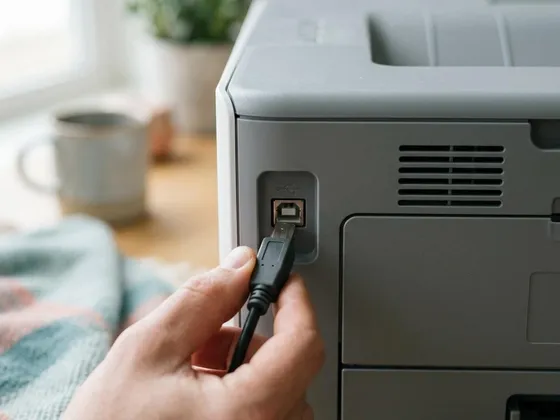
Push the USB-B end firmly into the port on the printer. It only fits one way round, so do not force it. If the printer has both a USB port and an Ethernet port close together, make sure you have chosen the one marked with the USB symbol.
-
Step 4 of 6
Plug the other end directly into the computer
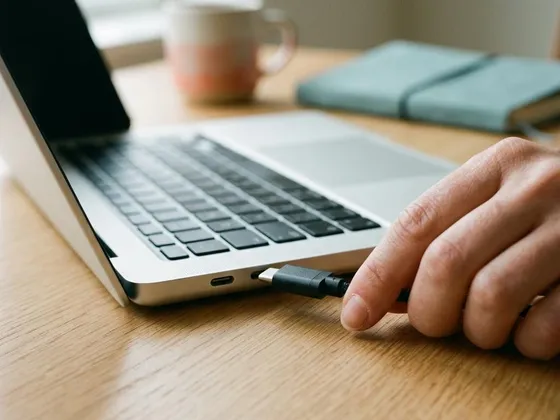
Connect the other end to a port on the computer itself. Avoid unpowered hubs, keyboard ports and monitor ports, which may not provide a stable connection. Some printer makers recommend installing their software before connecting the cable; if your quick-start sheet says so, follow that order instead.
-
Step 5 of 6
Let the computer detect the printer
Within a minute, most computers recognize the printer and install a basic driver automatically. You may see a short message that a device is being set up. Open your computer's printer settings and check that the printer now appears in the list, with a status such as Idle or Ready rather than Offline or Driver unavailable.
-
Step 6 of 6
Print a test page and set it as default
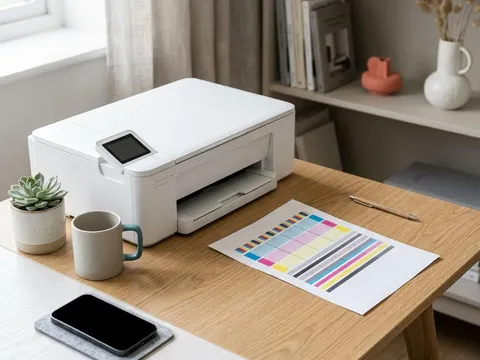
Open the printer's entry in the printer settings and print a test page. If the page comes out cleanly, mark the printer as your default. If the computer shows the printer but cannot print, download the full driver for your exact model from the printer maker's website and install it, then try again.
USB-A, USB-B and USB-C at a glance
USB-A is the flat, rectangular plug found on most older computers and chargers. USB-B is the squarer plug with bevelled corners used on most printers. USB-C is the small, rounded plug on newer laptops, tablets and phones, and it fits either way up. A small number of compact and portable printers use USB-C or micro-USB on the printer side too, so look at the port on your printer before buying a cable.
Sharing a USB printer with other devices
A USB printer can still be used by other computers in the home. The computer it is plugged into can share it over the network from its printer settings, and other computers then add it as a shared printer. The catch is that the host computer must be switched on and awake for anyone else to print. If that becomes inconvenient, moving the printer onto Wi-Fi or connecting it to the router with an Ethernet cable lets every device print directly.
Using USB for first setup, then moving to Wi-Fi
Some printers are easiest to put on a wireless network while they are connected by USB, because the maker’s setup software can pass the Wi-Fi details across the cable. Once the printer shows as connected to your network, you can unplug the cable and add the printer again as a network printer. Your printer’s quick-start sheet, or the setup pages on the maker’s website such as those for HP (opens in a new tab) and Canon (opens in a new tab) printers, explain whether your model offers this.
Still not working?
A few more things worth trying before you look further.
- Try a different USB port on the computer and, if possible, a different cable.
- Remove the printer from the computer's printer list, unplug the cable, restart the computer and connect again.
- Install the latest driver for your exact model from the maker's website before plugging the cable back in.
- If the printer powers on but never appears on any computer, check the printer maker's website for your model's troubleshooting pages or contact the maker.
Questions readers ask
Is USB better than Wi-Fi for printing?
For one computer next to the printer, USB is simpler and very reliable. Wi-Fi is better when several people or devices need to print, or when the printer is in a different room. Many printers allow both at once.
Can I use a phone charging cable to connect a printer?
Only if it is a data cable with the right connectors. Some cheap charging cables carry power but not data, so the computer never sees the printer. A cable sold as a printer or data cable avoids that problem.
Why does my computer make a sound but the printer does not appear?
The computer has detected a device but could not finish setting it up, often because it could not find a driver. Get the driver for your exact model from the maker's website, install it, then unplug and reconnect the cable.
Do I need a special cable for a dot-matrix or label printer?
Most current label and dot-matrix printers use the same USB-B port as other printers. Some older office models use a parallel or serial port instead, which needs a matching adapter. The specifications in the manual list the ports on your model.
Official manufacturer resources
Your printer's manual and the maker's website are the authoritative source for your exact model.
- HP — manuals, drivers and product help (hp.com) (opens in a new tab)
- Canon — manuals, drivers and product help (usa.canon.com) (opens in a new tab)
- Epson — manuals, drivers and product help (epson.com) (opens in a new tab)
- Brother — manuals, drivers and product help (brother.com) (opens in a new tab)
- Lexmark — manuals, drivers and product help (lexmark.com) (opens in a new tab)