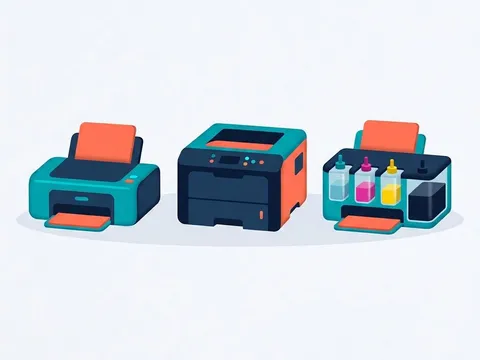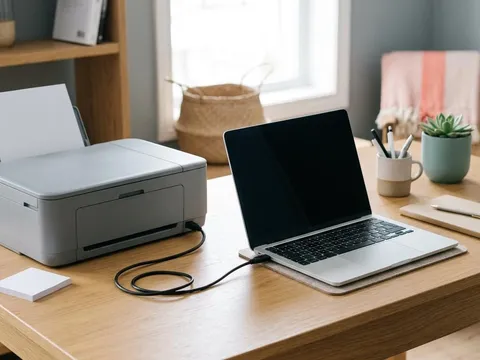
A printer that feeds paper but leaves it completely blank is working mechanically. The paper path, the connection and the computer are all doing their jobs. Something is stopping ink or toner reaching the page. On inkjets, the usual causes are protective tape left on a new cartridge, an empty or dried-out color, or nozzles blocked after a long rest. On laser printers, a missing shipping strip or an empty toner cartridge is the most common reason. This guide checks each one in order, starting with the quickest.
Symptoms
You are in the right place if you notice one or more of these.
- Paper feeds through the printer normally but comes out with nothing printed.
- Some pages print and others come out blank in the same job.
- Black text is missing but color prints, or the other way round.
- The first page after fitting a new cartridge or toner comes out empty.
Likely causes
Listed from most to least common.
-
01
Protective tape or a shipping strip still in place
New cartridges and toner ship with tape or plastic strips that seal the ink or toner. If one is left on, nothing reaches the paper.
-
02
An empty, dried or incorrectly installed cartridge
A cartridge that is empty, dried out after months unused, or not clicked fully into place cannot deliver ink.
-
03
Blocked printhead nozzles
Ink dries in the nozzles when an inkjet sits unused, particularly in warm rooms. Fully blocked nozzles print nothing at all.
-
04
A document or setting problem
Blank pages in a document, white text, or a print setting such as the wrong paper size or a blank page separator can make pages print empty.
What you'll need
- Plain paper loaded in the printer
- Access to the printer's maintenance menu or software
- A lint-free cloth, if you need to handle cartridges
Fix it step by step
6 steps-
Step 1 of 6
Print a page from the printer itself
Print a configuration, status or nozzle check page directly from the printer's menu. If that page prints correctly, the printer can apply ink or toner and the problem is with the document or the computer's settings. If the printer's own page is blank too, the problem is inside the printer, and the following steps apply.
-

Step 2 of 6
Check for protective tape or shipping strips
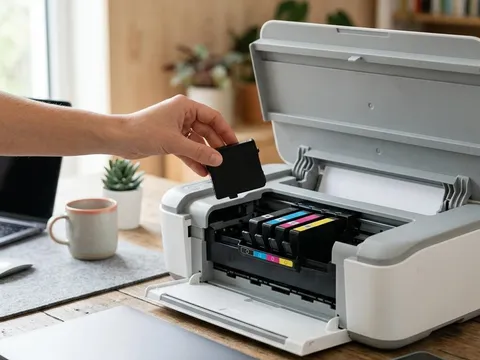
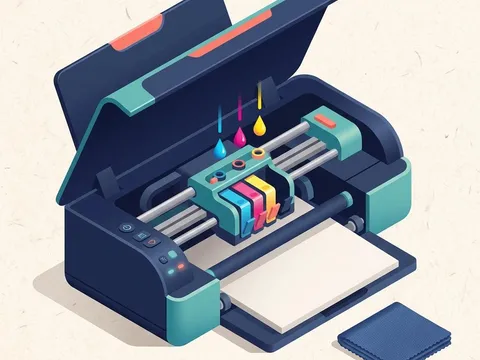
Open the cartridge or toner access cover. On inkjet cartridges, look for a small strip of tape or plastic over the nozzles or air vent and remove it, holding the cartridge by its sides. On laser toner cartridges, check for a long plastic pull strip and pull it out completely. Reinstall each supply until it clicks or locks.
-
Step 3 of 6
Check ink or toner levels
Look at the levels on the printer's display, in the printer software on your computer, or on the tanks themselves for ink-tank printers. Replace or refill any empty color. Some printers stop printing entirely when one color runs out, even if you only print in black, so check every color, not just the one you use most.
-
Step 4 of 6
Run a nozzle check
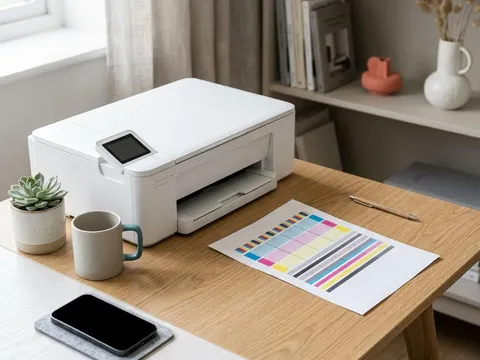
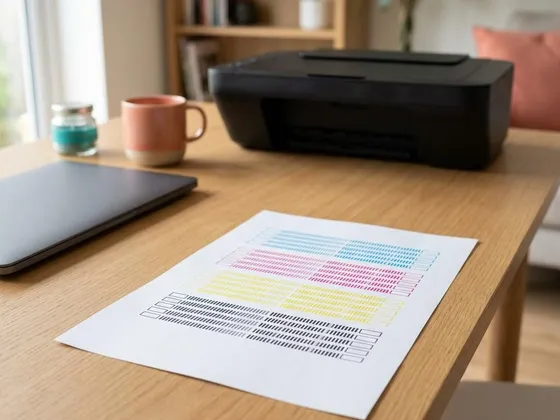
For inkjet and ink-tank printers, print a nozzle check pattern from the maintenance menu. A complete pattern shows unbroken lines in every color. Missing blocks or a fully blank pattern mean the nozzles are blocked. Run one cleaning cycle, wait a few minutes, then print the pattern again.
-
Step 5 of 6
Clean again, then let the printer rest
If the second pattern improves but is not complete, run one more cleaning cycle. Then stop and let the printer rest for several hours or overnight so the cleaning fluid can loosen dried ink. Running cycle after cycle in a row uses a lot of ink and rarely helps more than a pause does.
-
Step 6 of 6
Check the document and print settings
If the printer's own page prints fine, open print preview in your app. Check for blank pages within the document, text set to white, or a page range that includes empty pages. In the printer settings, make sure the paper size matches the paper in the tray and that no option such as print separator pages or a blank cover page is switched on.
Why ink dries in the first place
Inkjet printheads have hundreds of microscopic nozzles. Each one is kept moist by regular use and by the printer capping the head when it is idle. When a printer sits unused for weeks, especially in a warm, dry room, ink at the tip of the nozzles thickens and dries. Printing a page or a nozzle check once a week keeps ink moving and prevents most blank-page problems.
Cartridges with built-in printheads
Some inkjet cartridges include their own printhead, so fitting a new cartridge also gives you new nozzles. If one of these cartridges prints blank even after cleaning, a replacement often solves the problem. Printers with a fixed printhead, common on ink-tank models, rely on cleaning cycles instead. Your printer’s manual or the maker’s website, for example the pages for Canon (opens in a new tab) or HP (opens in a new tab) printers, explain which type you have.
Blank pages from a laser printer
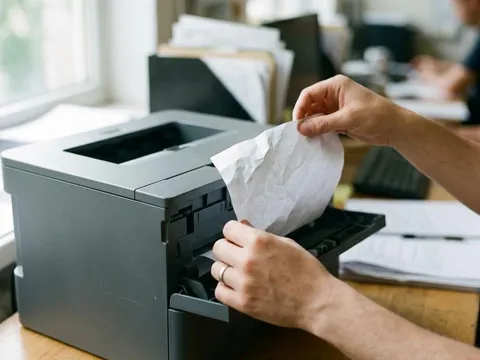
Laser printers do not dry out, so blank pages usually mean the toner cannot reach the drum. Check for the shipping strip on new toner, make sure the toner and drum are locked in place, and confirm the cartridge is not empty. If the printer uses a separate drum unit, check that the toner is clicked into the drum before the pair goes into the printer.
Still not working?
A few more things worth trying before you look further.
- Remove and reinstall each cartridge, gently wiping the copper contacts with a dry lint-free cloth first.
- Try a fresh cartridge for the color that is not printing, especially if the current one has been open for a long time.
- For printers that have been unused for months, follow the deeper cleaning steps in our printhead cleaning guide.
- If blank pages continue with new supplies and a clean nozzle check is not possible, contact the printer maker about the printhead.
Questions readers ask
Why does my new cartridge print blank pages?
A strip of protective tape left on the cartridge is the most common reason. Remove the cartridge, check every side for tape or a plastic cap, and reinstall it until it clicks.
Can a printer print blank pages because of a computer setting?
Yes. A document with empty pages, white text, or a setting such as separator pages can produce blank sheets. If the printer's own status page prints correctly, the cause is almost always on the computer side.
How many cleaning cycles should I run?
Run one or two, checking with a nozzle check pattern after each. If the pattern is still incomplete, leave the printer to rest for several hours before trying again. Repeated back-to-back cycles waste ink.
Why does my laser printer print blank pages?
Check for a plastic shipping strip on new toner, confirm the toner and drum are fully seated, and check the toner level. A completely blank page with a full, correctly installed cartridge points to a drum or hardware fault the maker should look at.
Official manufacturer resources
Your printer's manual and the maker's website are the authoritative source for your exact model.
- HP — manuals, drivers and product help (hp.com) (opens in a new tab)
- Canon — manuals, drivers and product help (usa.canon.com) (opens in a new tab)
- Epson — manuals, drivers and product help (epson.com) (opens in a new tab)
- Brother — manuals, drivers and product help (brother.com) (opens in a new tab)