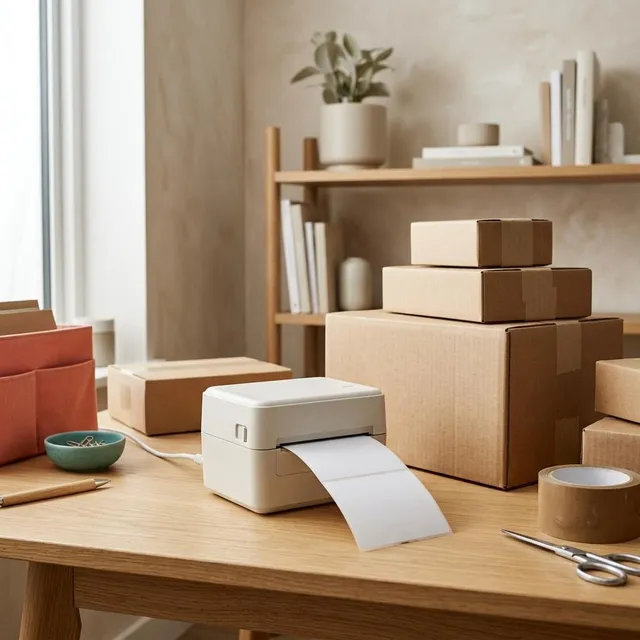
Label printers are small, fast and use no ink or toner. Most print with heat, either directly onto heat-sensitive labels or by melting a thin ribbon onto the label. They are popular for shipping labels, barcodes, file folders and price tags. Setting one up is different from a regular printer in two ways: the label roll must be loaded exactly right, and the printer has to learn the size of the label and the gap between labels. This guide covers both, plus the computer settings that stop labels printing off-centre or across two labels.
What you'll need
- The label printer, its power adapter and a USB cable or wireless connection
- A roll or stack of labels the printer is designed for, in the size you plan to use
- A ribbon, only if your printer is a thermal transfer model
- The printer's manual or quick-start sheet for the label path diagram
Step by step
6 steps-
Step 1 of 6
Find out which thermal method your printer uses
Direct thermal printers darken special heat-sensitive labels and need no ribbon. Thermal transfer printers use a ribbon that melts onto ordinary label stock and produce prints that last much longer. The manual or the product page states which type you have. Using direct thermal labels in a transfer printer without a ribbon, or the reverse, gives blank or faint labels.
-
Step 2 of 6
Load the label roll along the printed path
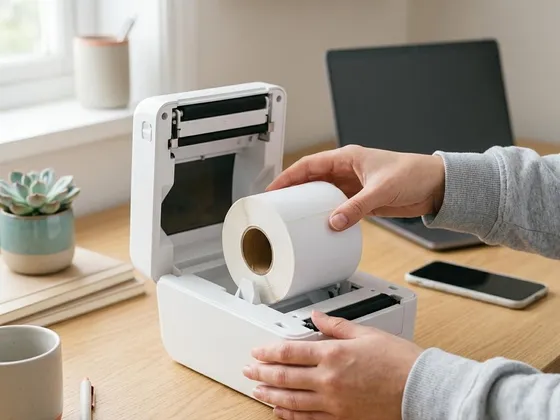
Open the cover and look for the diagram showing the label path. Place the roll on its holder so the labels come off the correct side, usually with the printable face upwards. Thread the leading edge through the guides and under the print head, then slide the edge guides in until they just touch the roll. Close the cover firmly until it clicks.
-
Step 3 of 6
Fit the ribbon, if your model uses one
For thermal transfer printers, load the ribbon roll and its empty take-up core according to the diagram, with the ink side facing the label. The ribbon should run smoothly from one core to the other without wrinkles. Choose a ribbon at least as wide as your labels so the print head never touches the label directly.
-
Step 4 of 6
Connect the printer and install its driver
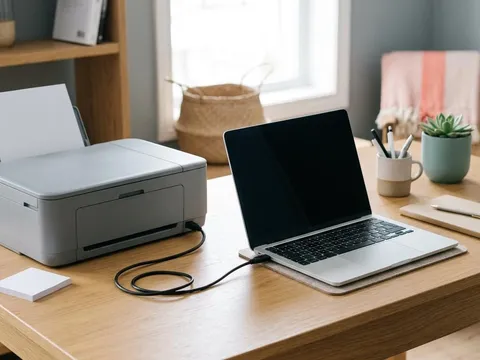
Connect by USB or follow the wireless setup in the quick-start sheet. Many label printers need their own driver for the computer to offer the correct label sizes, so download it from the printer maker's website for your exact model. Once installed, the printer appears in your computer's printer settings like any other printer.
-
Step 5 of 6
Calibrate the printer to your labels
Run the printer's calibration or media detection routine. On many models you hold the feed button for a few seconds until a few labels feed out; others do it from the driver or an app. The printer measures where each label starts and ends using the gap or black mark between labels. Calibrate again every time you change to a different label size or type.
-
Step 6 of 6
Match the page size in the driver and print a test label
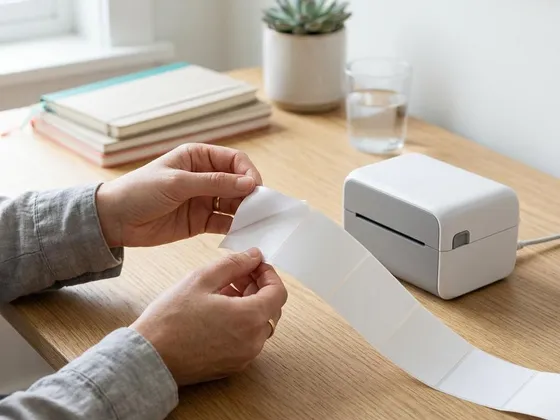
In the printer driver's preferences, set the paper or label size to match your labels exactly, for example 4 × 6 inches for a common shipping label. Then print a test label from the driver or from the app you will use. Peel it and check that the print is centered, sharp and fully on one label.
Direct thermal or thermal transfer: which labels to buy
Direct thermal labels are the simplest choice: no ribbon to buy, nothing to replace except the labels. They are ideal for shipping labels that only need to last a few weeks. The trade-off is fading in sunlight and warmth, and a scratch or heat source can darken them. Thermal transfer labels need a ribbon, but the print is resistant to heat, light and rubbing. Use them for labels that must stay readable, such as equipment tags, freezer labels and archive boxes.
Getting shipping labels to print correctly
Shipping sites usually produce labels as a PDF sized for letter paper. When printing to a 4 × 6 inch label printer, choose the label size option the shipping site offers, if available, rather than letter. In the print dialog, set the scale to “Fit” or “Actual size” as the site recommends, and make sure the driver’s label size matches the stock. A mismatch is the most common reason for a label that prints tiny in one corner.
Keeping the print head clean
Adhesive and paper dust build up on the print head over time and cause faint lines through the print. Most label printer makers, such as Brother (opens in a new tab), describe a simple cleaning routine using an isopropyl alcohol wipe, done with the printer switched off and the head cool. Never scrape the head with anything hard, and let it dry completely before closing the cover.
Still not working?
A few more things worth trying before you look further.
- Turn the label roll over and reload it following the diagram inside the cover, then calibrate again.
- Clean the print head with an isopropyl alcohol wipe or pen if your manual recommends it, letting it dry fully before printing.
- Reinstall the driver for your exact model and set the label size again.
- If labels still print faint or patchy after cleaning, check the darkness or heat setting in the driver, then consult the maker's troubleshooting pages for your model.
Questions readers ask
Why are my labels coming out blank?
The labels are often loaded upside down, so the heat-sensitive side faces away from the print head. On thermal transfer printers, a missing ribbon or a ribbon fitted with the ink side facing the wrong way has the same result. Check the loading diagram inside the cover.
Why does one label print across two labels?
The printer has not detected the label size or gap correctly. Run the calibration routine again, then check that the page size in the driver matches the label size exactly.
How long do thermal labels last?
Direct thermal labels fade over time, faster in sunlight and heat, so they suit shipping labels and short-term use. Thermal transfer labels last much longer and are better for asset tags, storage labels and anything kept for years.
Can I use labels from a different brand?
Often yes, as long as the size, core diameter and thermal type match your printer's specifications. Some printers only accept labels with a chip or special marking; the manual states whether yours does.
Official manufacturer resources
Your printer's manual and the maker's website are the authoritative source for your exact model.