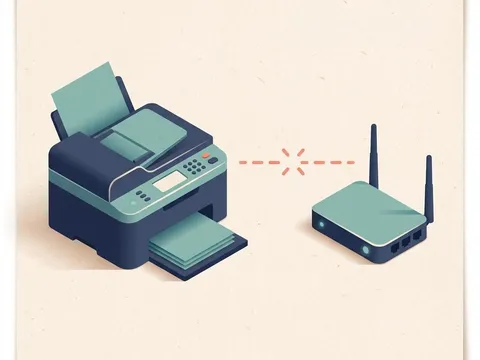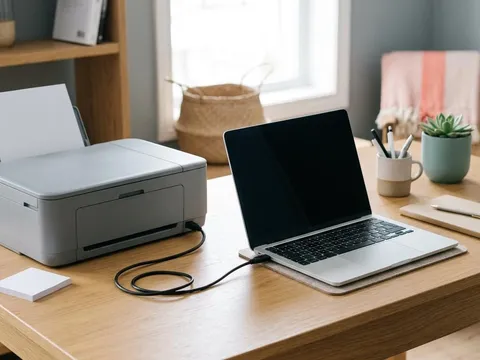
A printer that works one day and disappears the next is one of the most frustrating printer problems, because it seems random. It rarely is. Wireless printers drop off a network for a handful of predictable reasons: weak signal, deep sleep modes, a router that hands out a new address, or a network change the printer was never told about. This guide works through them from the quickest to check to the most involved, so you can find the cause and stop the drop-outs coming back.
Symptoms
You are in the right place if you notice one or more of these.
- The printer prints fine, then shows as offline later the same day or after a weekend.
- The Wi-Fi light on the printer blinks or turns off at random times.
- The printer only reconnects after you switch it off and on again.
- Printing works from some rooms or devices but not others.
Likely causes
Listed from most to least common.
-
01
Weak or obstructed signal
Thick walls, floors, metal shelves, fish tanks and microwaves weaken Wi-Fi. A printer at the edge of the signal range drops off whenever conditions change.
-
02
Deep sleep or auto-off settings
Energy-saving modes can switch off the printer's wireless radio after a period of inactivity, so it disappears until someone presses a button.
-
03
A changing IP address
Routers lend addresses to devices for a limited time. If the printer gets a new address, computers that remember the old one can no longer find it.
-
04
Router changes or band steering
A new router, a changed password, or a router that moves devices between its 2.4 GHz and 5 GHz bands can leave the printer on the wrong network or none at all.
What you'll need
- Access to the printer's setup menu or control panel
- Your Wi-Fi network name and password
- Access to your router's settings page, for the later steps
- A computer or phone on the same network to test printing
Fix it step by step
7 steps-
Step 1 of 7
Print a wireless network test report
From the printer's setup or wireless menu, print the network configuration or wireless test report. It shows the network name the printer is on, the signal strength and the current IP address. Keep the page: you will compare it with later results. A signal described as weak or poor points straight to placement as the main problem.
-
Step 2 of 7
Move the printer closer to the router, or the router closer to the printer
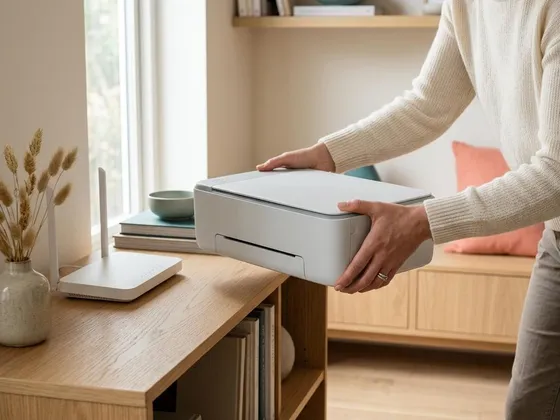
Place the printer in the same room as the router or one room away, off the floor and away from large metal objects, microwaves and cordless phone bases. Print another test report to compare signal strength. If moving it fixes the drop-outs, consider a mesh system or a wired Ethernet connection for the printer's permanent spot.
-
Step 3 of 7
Adjust sleep and auto-off settings
In the printer's settings menu, find the energy or power options. Sleep mode is usually fine to keep, but an auto power-off timer switches the printer off completely after a few hours without use. Turn auto-off off or lengthen it if you print from other rooms. Some printers also have a setting that keeps the wireless radio active during sleep.
-
Step 4 of 7
Restart the router and reconnect the printer
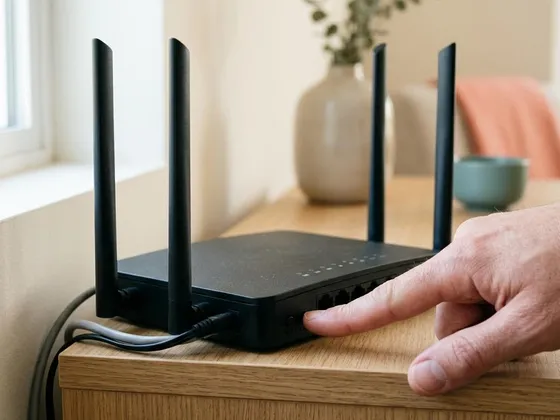
Restart the router, wait until its lights settle, then restart the printer. If the printer does not reconnect on its own, run its wireless setup again from the menu, choosing your network and entering the password. Check carefully for typing mistakes in the password; one wrong character is enough to make the connection fail.
-
Step 5 of 7
Connect the printer to the 2.4 GHz band
Most printers connect best on the 2.4 GHz band, which reaches further through walls than 5 GHz. If your router uses one name for both bands, the router may push the printer between them. Many routers let you create a separate 2.4 GHz network name. Connect the printer to that network, and keep your phones and computers on whichever network you prefer, as long as both are part of the same home network.
-
Step 6 of 7
Reserve a fixed IP address for the printer
In your router's settings, find the list of connected devices and the option called address reservation, DHCP reservation or static lease. Reserve the printer's current IP address, taken from your test report. From now on, the printer keeps the same address, and computers always find it in the same place.
-
Step 7 of 7
Update the printer's firmware
Printer makers regularly release firmware updates that improve wireless stability. Check for updates from the printer's menu or on the maker's website for your exact model. Install updates with the printer connected to power and do not switch it off until the update finishes.
How to find your router’s settings page
Most routers have a settings page you open in a web browser by typing an address printed on the label underneath the router, often a number such as 192.168.0.1 or 192.168.1.1. Many internet providers also offer an app for the same settings. The admin password is usually on the same label or was set when the router was installed. Change only the settings described in this guide, and note the original values first.
When wired is the better answer
If the printer sits close to the router, or near any network socket, a short Ethernet cable is the most reliable connection there is. It does not drop out, is faster for large jobs and frees the printer from signal problems. Computers and phones on Wi-Fi can still print to a wired printer, because they are all on the same home network. The setup pages for each printer maker, such as Canon (opens in a new tab) or Brother (opens in a new tab), list whether your model has a network port.
Checking a computer’s own connection
Occasionally the printer is fine and the computer is the one that wandered off, for example onto a guest network or a neighbor’s open network with a similar name. On the computer, check the network name before blaming the printer. Our guide to a printer showing offline covers the computer-side checks in more detail, including a link to the Windows printer connection checks (opens in a new tab).
Still not working?
A few more things worth trying before you look further.
- Connect the printer to the router with an Ethernet cable if it has a network port. A wired connection removes wireless drop-outs entirely.
- Remove the printer from each computer and add it again using its reserved IP address.
- Reset the printer's network settings to default from its menu and run the wireless setup from the start.
- If the printer loses its connection even right next to the router after a reset and update, contact the printer maker about a possible hardware fault.
Questions readers ask
Why does my printer work after I switch it off and on?
Restarting forces the printer to rejoin the network and get a fresh address. That clears the immediate problem but not the cause. Look at sleep settings, signal strength and address reservation to stop it recurring.
Should I use a Wi-Fi extender for my printer?
An extender can help a printer that sits at the edge of your coverage, but some printers struggle to stay connected through extenders. A mesh system or a direct Ethernet cable is usually more reliable.
Is it safe to change settings on my router?
Reserving an address or adding a 2.4 GHz network name is safe and reversible. Write down any setting before you change it, and avoid changing security settings you do not understand.
Can other devices cause my printer to disconnect?
Yes. Microwaves, baby monitors and some cordless phones use the same frequency range as 2.4 GHz Wi-Fi. Moving the printer away from them, or them away from the printer, can make a clear difference.
Official manufacturer resources
Your printer's manual and the maker's website are the authoritative source for your exact model.
- HP — manuals, drivers and product help (hp.com) (opens in a new tab)
- Canon — manuals, drivers and product help (usa.canon.com) (opens in a new tab)
- Epson — manuals, drivers and product help (epson.com) (opens in a new tab)
- Brother — manuals, drivers and product help (brother.com) (opens in a new tab)