Print speed figures on the box are measured under ideal conditions: plain text, plain paper, draft or standard quality, and a printer that is already warmed up. Real jobs are slower, and some are much slower for good reasons. High-quality photo modes make several passes over each area, wireless connections add delay for large files, and printers waking from deep sleep need time to warm up or run maintenance. This guide explains what is normal and which changes make a real difference.
Symptoms
You are in the right place if you notice one or more of these.
- The first page takes a long time to start, but later pages are quicker.
- Photos and image-heavy pages print far slower than text.
- Jobs from one computer or phone are slow while others are fine.
- The printer pauses between pages or partway through a page.
Likely causes
Listed from most to least common.
-
01
High quality or photo settings
Best or photo modes print in more passes with smaller droplets, which can take several times longer per page.
-
02
Warm-up and wake time
Laser printers must heat the fuser, and inkjets may run a short maintenance routine when waking from sleep.
-
03
A slow or weak connection
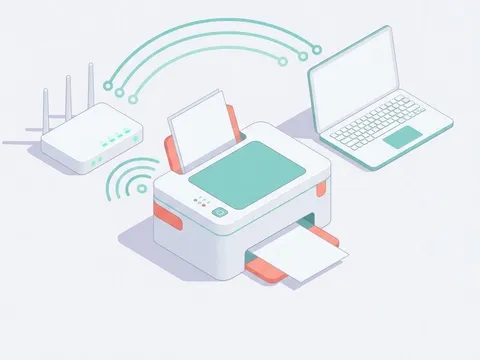
Large files sent over a weak Wi-Fi signal take time to transfer before printing can begin.
-
04
Large or complex files
High-resolution images, complex PDFs and documents with many fonts take longer for the computer and printer to process.
What you'll need
- Access to the printer's settings and the print dialog on your computer
- A test document, such as a page of plain text
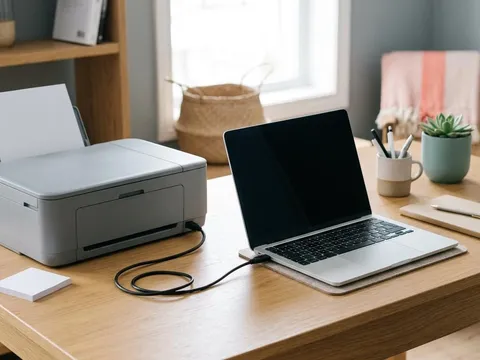
- An Ethernet or USB cable, if you want to test a wired connection
Fix it step by step
7 steps-
Step 1 of 7
Check the quality setting
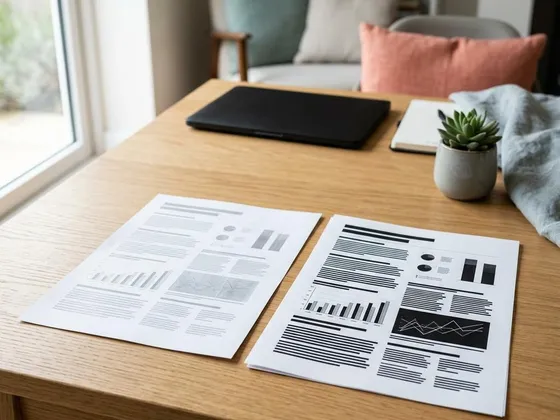
Open the print dialog and look at the quality option. Switch from Best or High to Standard for everyday documents, and use Draft for internal notes and drafts. On photo paper, high quality is worth the wait, but on plain paper it rarely looks noticeably better.
-
Step 2 of 7
Turn off settings that add passes
Options such as bidirectional printing being off, high-speed printing being off, or a quiet mode being on make the printer slower. Quiet mode in particular can halve speed to reduce noise. Look in the printer preferences for these options and change them if speed matters more than noise.
-
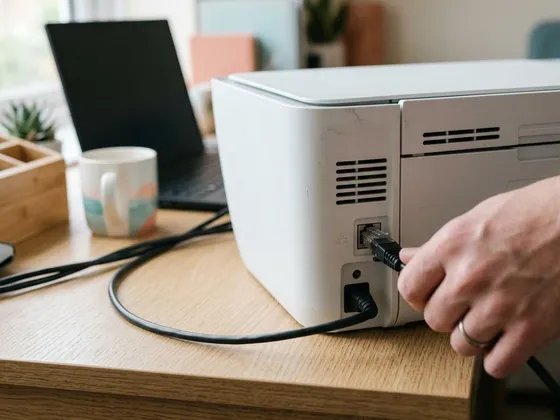
Step 3 of 7
Look at the connection
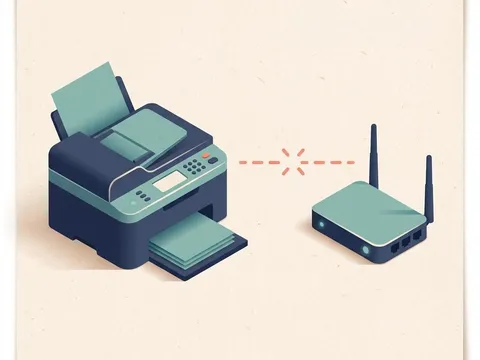
Print a wireless network report from the printer to check signal strength. If the signal is weak, move the printer closer to the router or connect it with an Ethernet cable. For a single computer next to the printer, a USB cable removes network delay entirely.
-
Step 4 of 7
Reduce the size of large files
If a document full of high-resolution photos is slow, try exporting it as a smaller PDF or reducing image sizes before printing. A file that is many megabytes per page takes time to send and process, especially over Wi-Fi.
-
Step 5 of 7
Adjust sleep and warm-up behavior
If the first page is always slow, look at the sleep timer in the printer's settings. A slightly longer sleep delay keeps the printer ready during busy periods. Laser printers with a quick-start or fast warm-up mode can also reduce first-page time, at the cost of a little more energy use.
-
Step 6 of 7
Update the driver and firmware
Outdated drivers can process jobs inefficiently. Install the current driver for your exact model from the printer maker's website, and check the printer's menu for firmware updates.
-
Step 7 of 7
Clear old jobs and restart
A queue holding old or failed jobs can slow everything down. Clear the print queue, restart the printer and computer, then print a single text page to measure speed again.
What the speed on the box means
Printer makers measure speed with standardized test documents, usually under ISO methods, which count pages per minute after the first page. That makes printers comparable with each other, but it does not include the time to the first page, color photos or complex layouts. A printer rated at 15 pages per minute for text may take a minute or more for a single borderless photo, and that is normal.
Dot-matrix and label printers
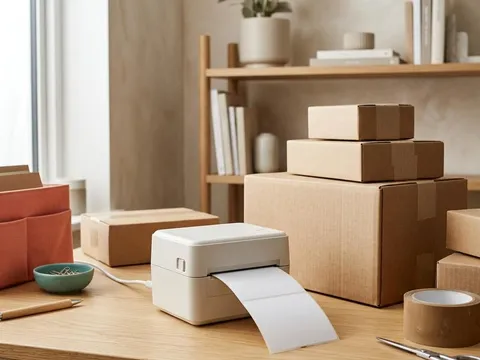
Dot-matrix printers measure speed in characters per second rather than pages, and the quality mode makes a large difference. Draft mode is several times faster than near-letter-quality mode. Label printers measure speed in inches or millimeters per second, and darker heat settings can slow them down. The specifications for your model, on the maker’s website such as the pages for Epson (opens in a new tab) printers, list speed for each mode.
When slow printing is a sign of something else
A printer that pauses for a long time mid-page, makes unusual noises, or shows repeated cleaning cycles may have a different problem, such as ink running low on an inkjet or a printer cooling down after a long run. Check the printer’s display for messages, and consult our guides on blank pages and print quality if the output itself also looks wrong.
Still not working?
A few more things worth trying before you look further.
- Print the same text page from a different computer or phone to see whether the slowdown follows one device.
- Test with a USB or Ethernet cable to rule out the wireless connection.
- Check whether the printer is set to print every job in a high-quality or photo mode from its own control panel.
- If plain text pages remain much slower than the printer's rated speed on a wired connection, check the maker's troubleshooting pages for your model.
Questions readers ask
Why is the first page always slow?
Laser printers need to heat the fuser, and inkjets may run a short cleaning routine after sleep. The time to the first page is often listed separately in the printer's specifications.
Why do photos print so slowly?
Photo modes lay down many fine droplets in several passes to avoid visible banding. That produces smoother results but takes much longer than text.
Does Wi-Fi make printing slower?
It can for large files, especially with a weak signal. Text documents are small and usually print just as fast over Wi-Fi. A wired connection helps most with large image files.
What does PPM mean on a printer box?
PPM means pages per minute. It is measured with standard test documents at standard or draft quality, so real-world speeds, especially for photos, are usually lower.
Official manufacturer resources
Your printer's manual and the maker's website are the authoritative source for your exact model.
- HP — manuals, drivers and product help (hp.com) (opens in a new tab)
- Canon — manuals, drivers and product help (usa.canon.com) (opens in a new tab)
- Epson — manuals, drivers and product help (epson.com) (opens in a new tab)
- Brother — manuals, drivers and product help (brother.com) (opens in a new tab)