Laser printers need little routine care compared with inkjets. Toner is a dry powder that does not evaporate or clog, so a laser printer can sit unused for months and still print a clean page. The parts that do need attention are the toner cartridge and the drum, which carries the image of each page. Handling them correctly makes them last longer and prevents most print quality problems. This guide covers storage, handling, replacement and the warning messages along the way.
What you'll need
- A replacement toner cartridge or drum unit with the right model number
- A sheet of paper or a cloth to rest supplies on
- Your printer's manual for the replacement steps
Step by step
7 steps-
Step 1 of 7
Know whether your printer has a separate drum
Some laser printers combine toner and drum in one cartridge. Others use a separate drum unit that lasts through several toner cartridges. Your manual or the supplies list on the maker's website shows which design you have. It changes what you replace when print quality drops.
-
Step 2 of 7
Store spare toner correctly
Keep spare toner cartridges sealed in their original packaging, lying flat, in a cool, dry place away from direct sunlight. Avoid very hot places such as cars in summer or shelves above radiators. Store them where children and pets cannot reach.
-
Step 3 of 7
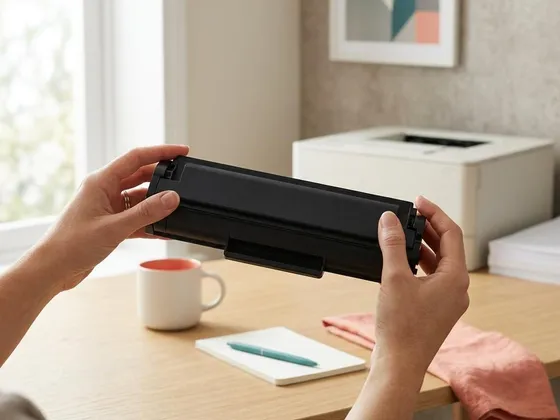
Shake new toner before installing
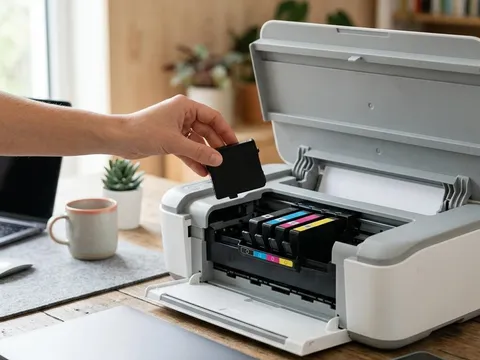
Remove the new cartridge from its bag and, holding it level, rock it gently side to side five or six times. This spreads the toner evenly along the cartridge. Then remove any orange clip, plastic shield or pull strip exactly as the packaging shows.
-
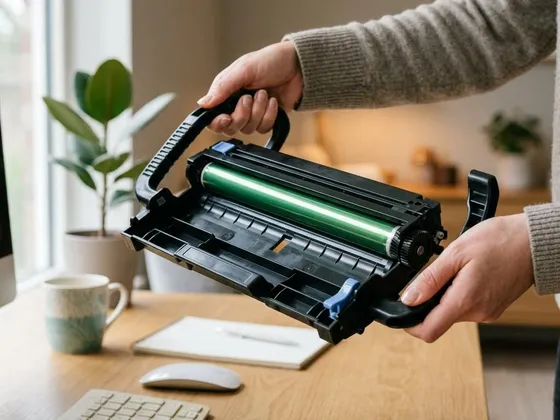
Step 4 of 7
Handle drums by their handles only
The drum surface, usually green, blue or dark gray, is sensitive to light, scratches and skin oils. Hold drum units and combined cartridges by their plastic handles or sides only. Do not touch the drum surface, and do not leave it exposed to room light for more than a few minutes.
-
Step 5 of 7
Read low-toner messages sensibly
The first low-toner warning usually appears while plenty of pages remain. Order a replacement then, but keep printing until pages start to fade or the printer asks for a new cartridge. When prints become faint, rocking the cartridge again often gives a few dozen more pages.
-
Step 6 of 7
Replace and reset the drum when asked
When the printer reports the drum is near the end of its life, plan a replacement. Install the new drum as the manual describes. Some printers detect a new drum automatically; others need you to reset the drum counter from the printer's menu, so the end-of-life message does not return straight away.
-
Step 7 of 7
Recycle used supplies
Put used toner cartridges and drums in the bag from the new one to contain loose toner. Many printer makers run free return programs, and local electronics recyclers often accept toner cartridges. Do not burn toner cartridges or throw loose toner into household waste.
Why a laser printer is low-maintenance
Unlike inkjets, laser printers do not need regular use to stay healthy. There are no nozzles to dry out and no cleaning cycles to run. This makes a laser printer a good choice for people who print occasionally, especially text documents. The main running costs are toner, the drum, and eventually wear parts such as the fuser and pickup rollers, which many printers report in their status page.
Standard, high-yield and starter toner
Many laser printers ship with a starter cartridge that holds less toner than a full replacement. When buying a replacement, compare standard and high-yield versions by their rated page yield, measured under ISO standards. High-yield cartridges usually lower the cost per page. The supplies list for your printer on the maker’s website, such as the pages for Brother (opens in a new tab) or Kyocera (opens in a new tab) printers, shows every compatible option.
Cleaning inside a laser printer
Loose toner can collect inside the printer over time. With the printer switched off, unplugged and cool, wipe the areas your manual describes with a dry lint-free cloth. Some printers have a corona wire cleaner, a small sliding tab on the drum unit, which you move back and forth a few times when changing toner. Do not use liquids or a household vacuum inside the printer.
Questions readers ask
Can laser toner dry out?
No. Toner is a dry powder, so it does not dry out the way ink does. It can clump if stored in heat or humidity, which is why sealed, cool storage and a gentle shake before use are recommended.
How do I know if the drum or toner is the problem?
Faded, even printing usually means low toner. Repeating marks, ghost images, or lines that stay in the same place after a new toner cartridge usually point to the drum.
Do I need to reset anything after replacing toner?
Toner cartridges are usually detected automatically. Separate drum units on some printers need a manual counter reset, explained in the manual for your model.
Is toner dust harmful?
Toner is a fine powder, so avoid breathing it in or spreading it around. Clean spills with a dry cloth or cold, damp paper towel, never a household vacuum cleaner, and wash hands with cold water.
Official manufacturer resources
Your printer's manual and the maker's website are the authoritative source for your exact model.
- HP — manuals, drivers and product help (hp.com) (opens in a new tab)
- Brother — manuals, drivers and product help (brother.com) (opens in a new tab)
- Lexmark — manuals, drivers and product help (lexmark.com) (opens in a new tab)
- Xerox — manuals, drivers and product help (xerox.com) (opens in a new tab)
- Kyocera — manuals, drivers and product help (kyoceradocumentsolutions.us) (opens in a new tab)
- Ricoh — manuals, drivers and product help (ricoh-usa.com) (opens in a new tab)